Export Content to Local Backup
Export posts and pages from WordPress to a local .rp-export file for safekeeping
RightPlace lets you export WordPress posts and pages to a local file on your computer. The export saves your content as a .rp-export file that you can keep as a backup, share with a teammate, or import into another site later.
Before you start
- A WordPress site connected and fully paired
- Posts or pages on the site you want to back up
Step 1: Select the posts to export
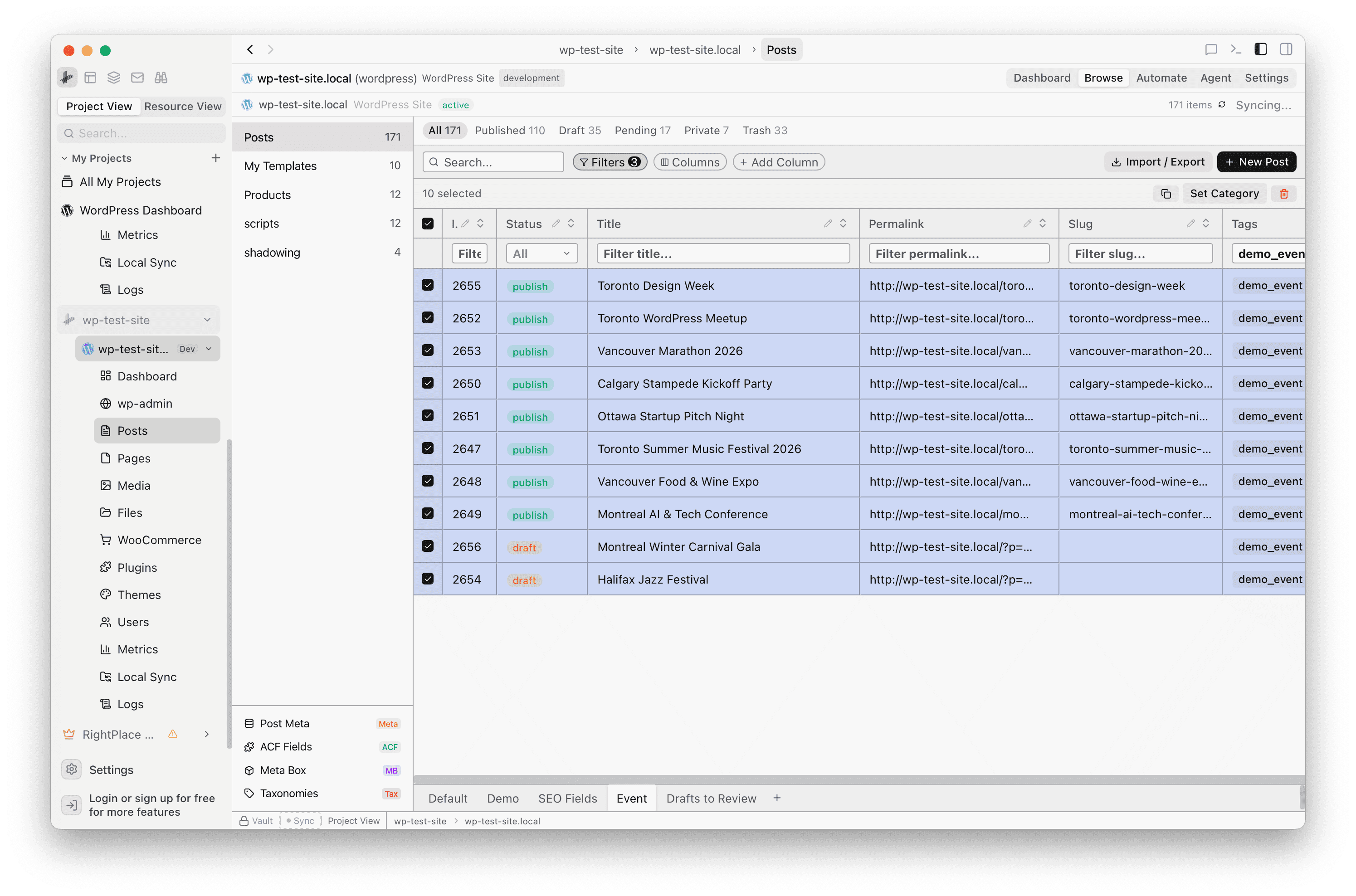
In the Posts tab (or Pages, or any custom post type), check the boxes next to the items you want to back up.
Step 2: Open the Export dialog
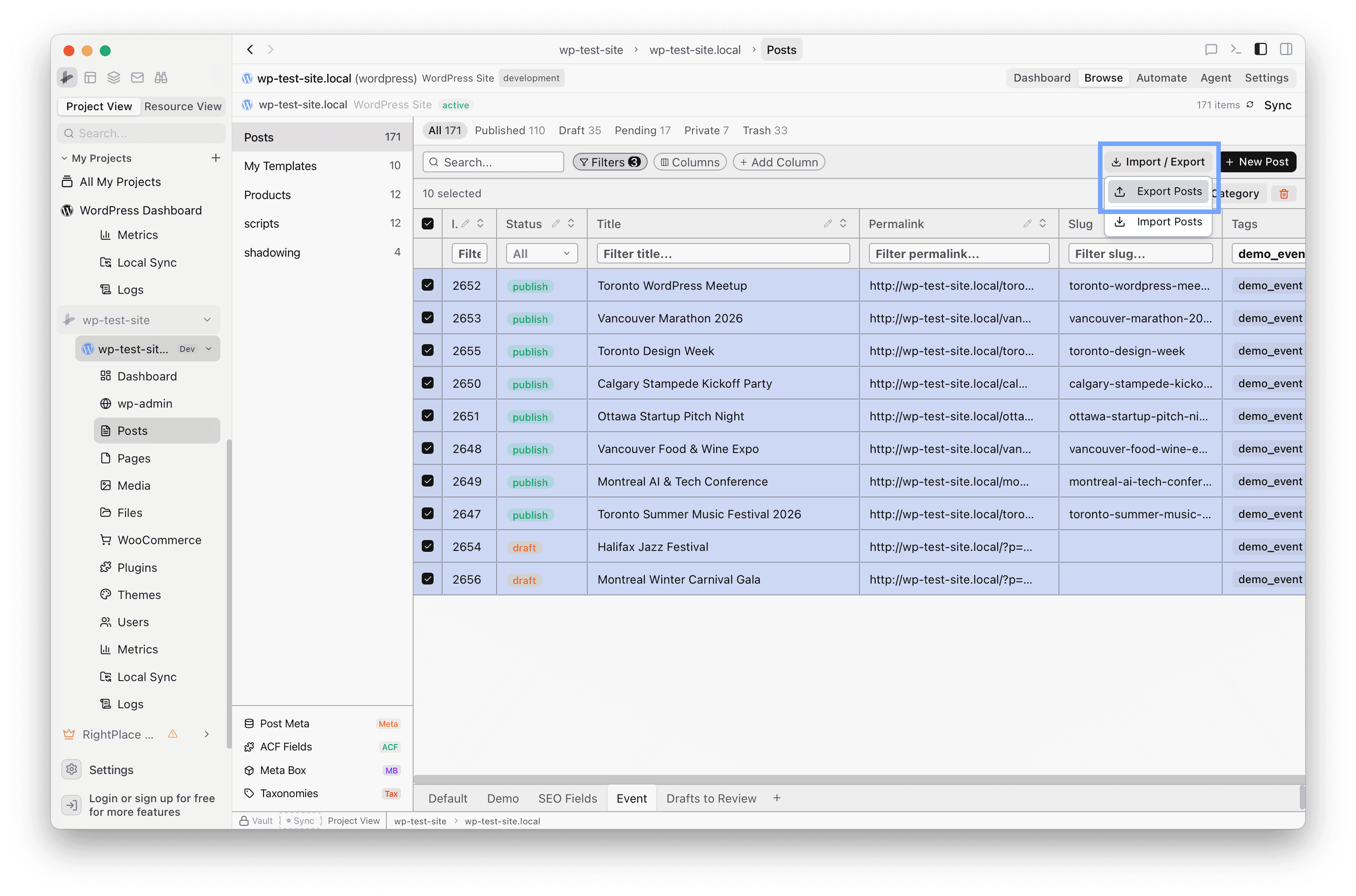
Click Import / Export in the toolbar, then choose Export Posts. The export dialog opens with a multi-step workflow.
Step 3: Choose the export scope
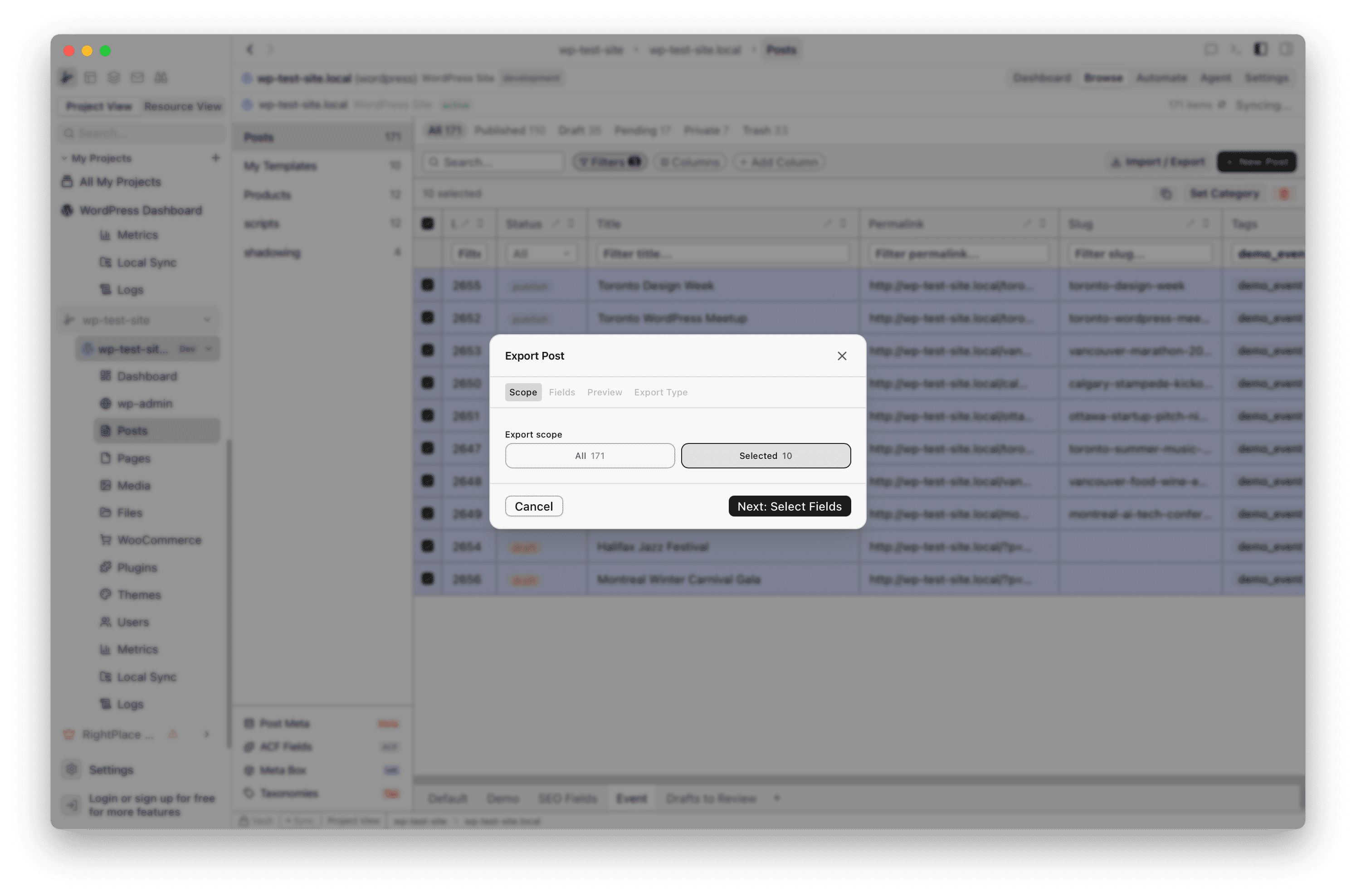
On the Scope tab, pick whether to export all posts of this type or only the ones you selected. Choose Selected if you only want to back up specific items.
Step 4: Pick the fields to include
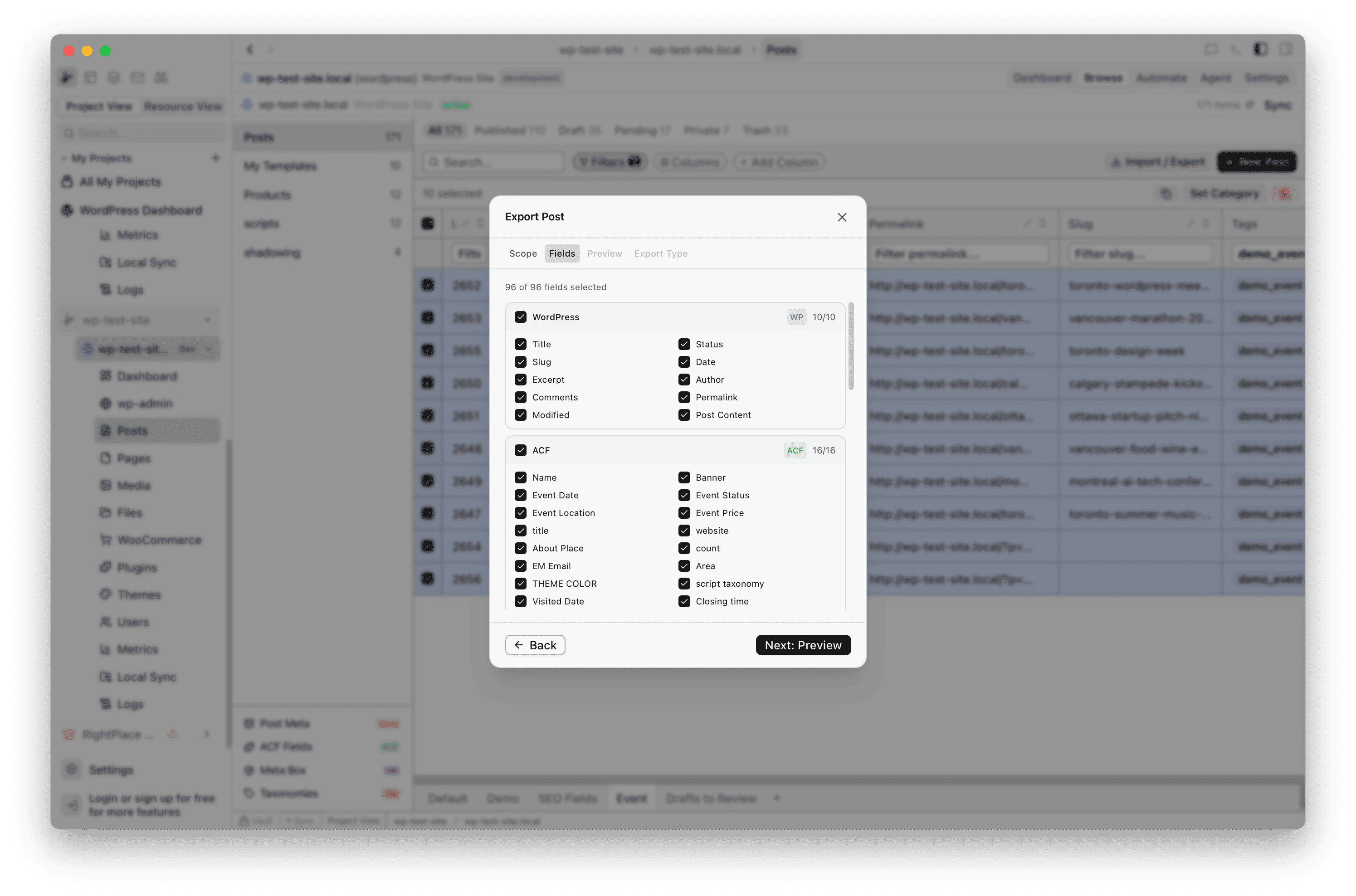
The Fields tab lists every available field: WordPress core fields (Title, Status, Slug, Date, Content, etc.) and any custom field groups (ACF, Meta Box, Pods). Check the fields you want in your backup. Core fields are selected by default.
Step 5: Preview the export
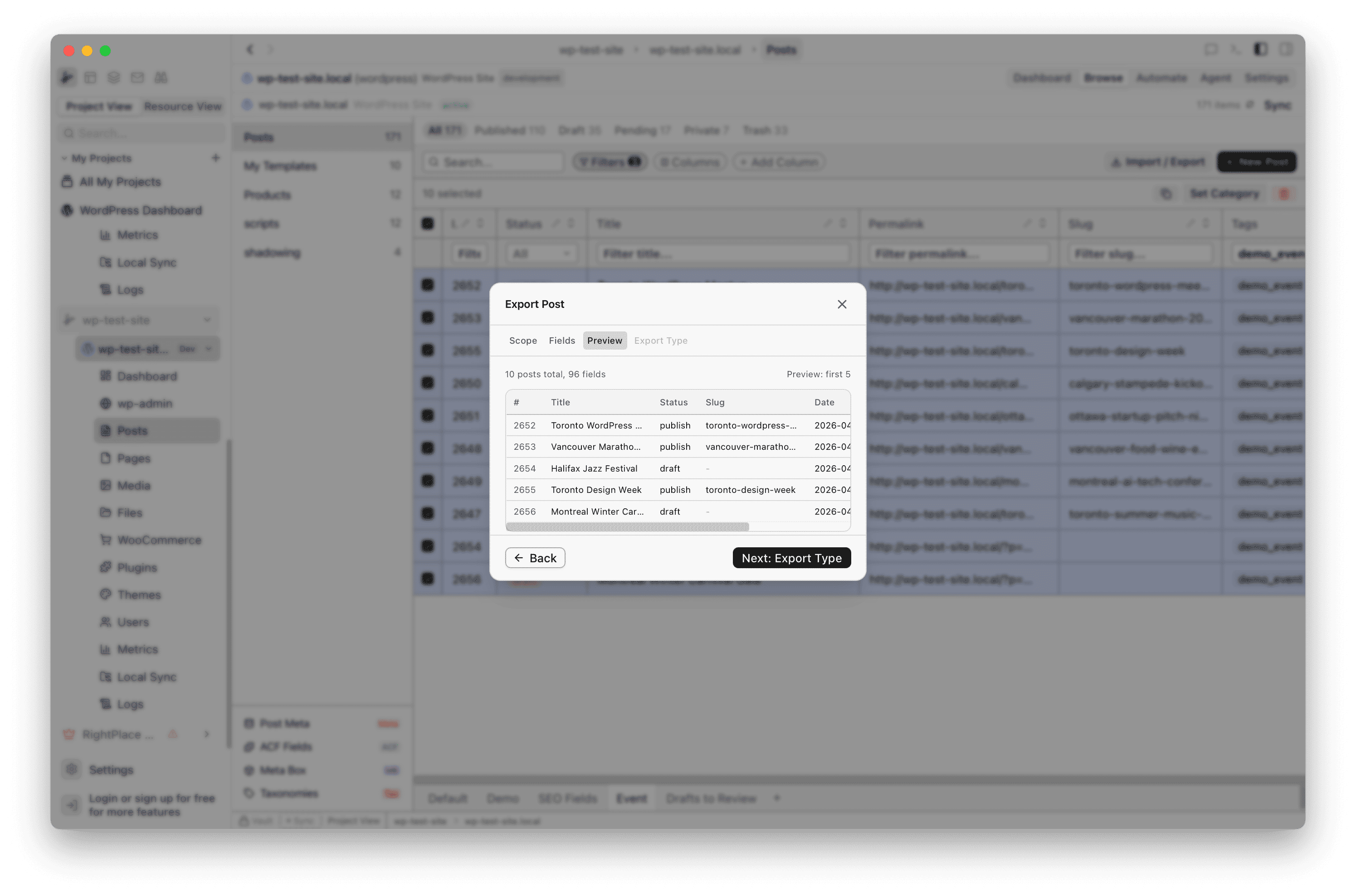
Switch to the Preview tab to see a summary: how many posts will be exported, which fields are included, and a table preview of the data. Confirm everything looks correct before continuing.
Step 6: Choose Download File
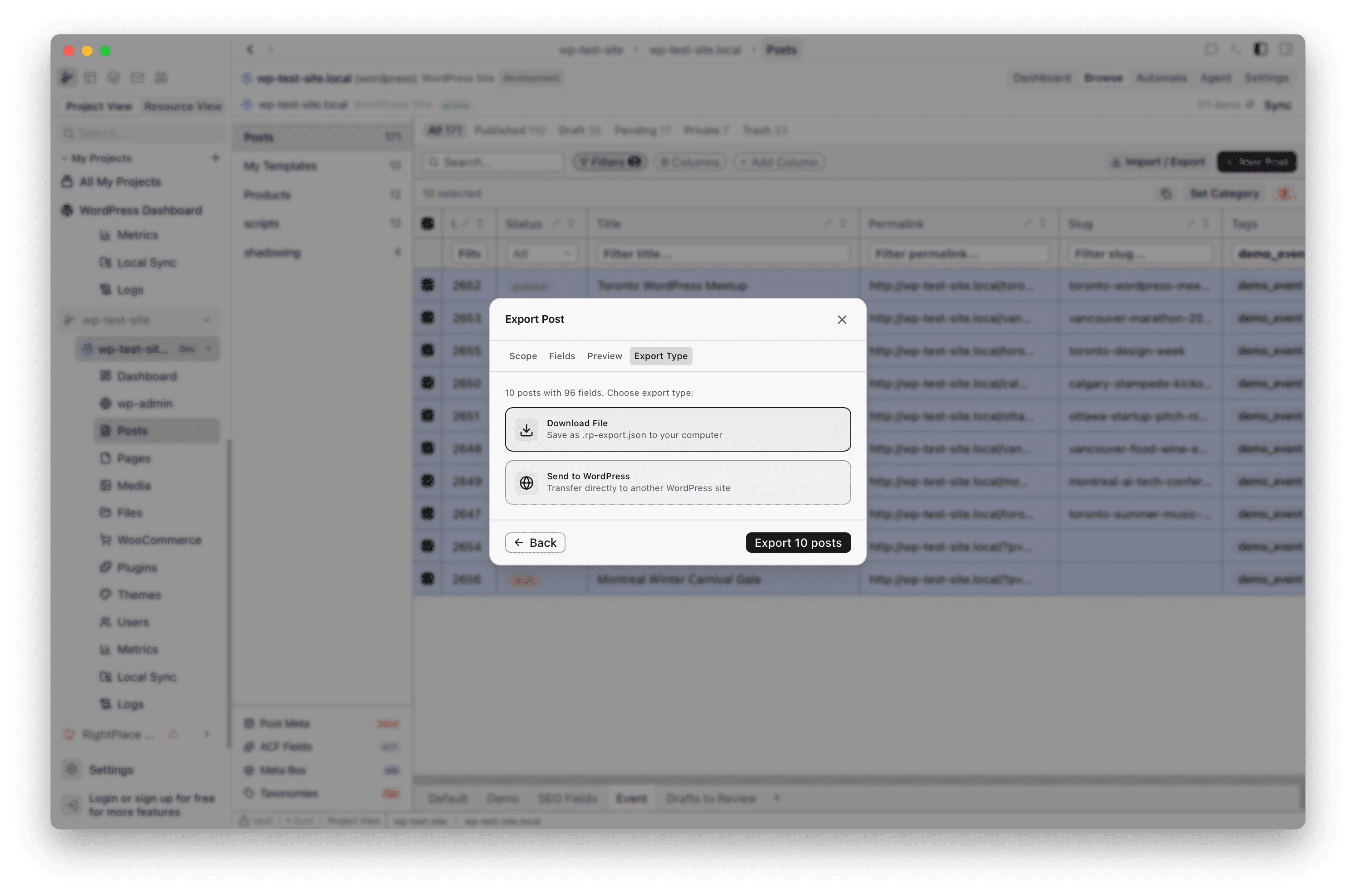
On the Export Type tab, select Download File. This saves the export as a .rp-export file on your computer. (The other option, Send to WordPress, transfers posts directly to another site without creating a file.)
Step 7: Save the file
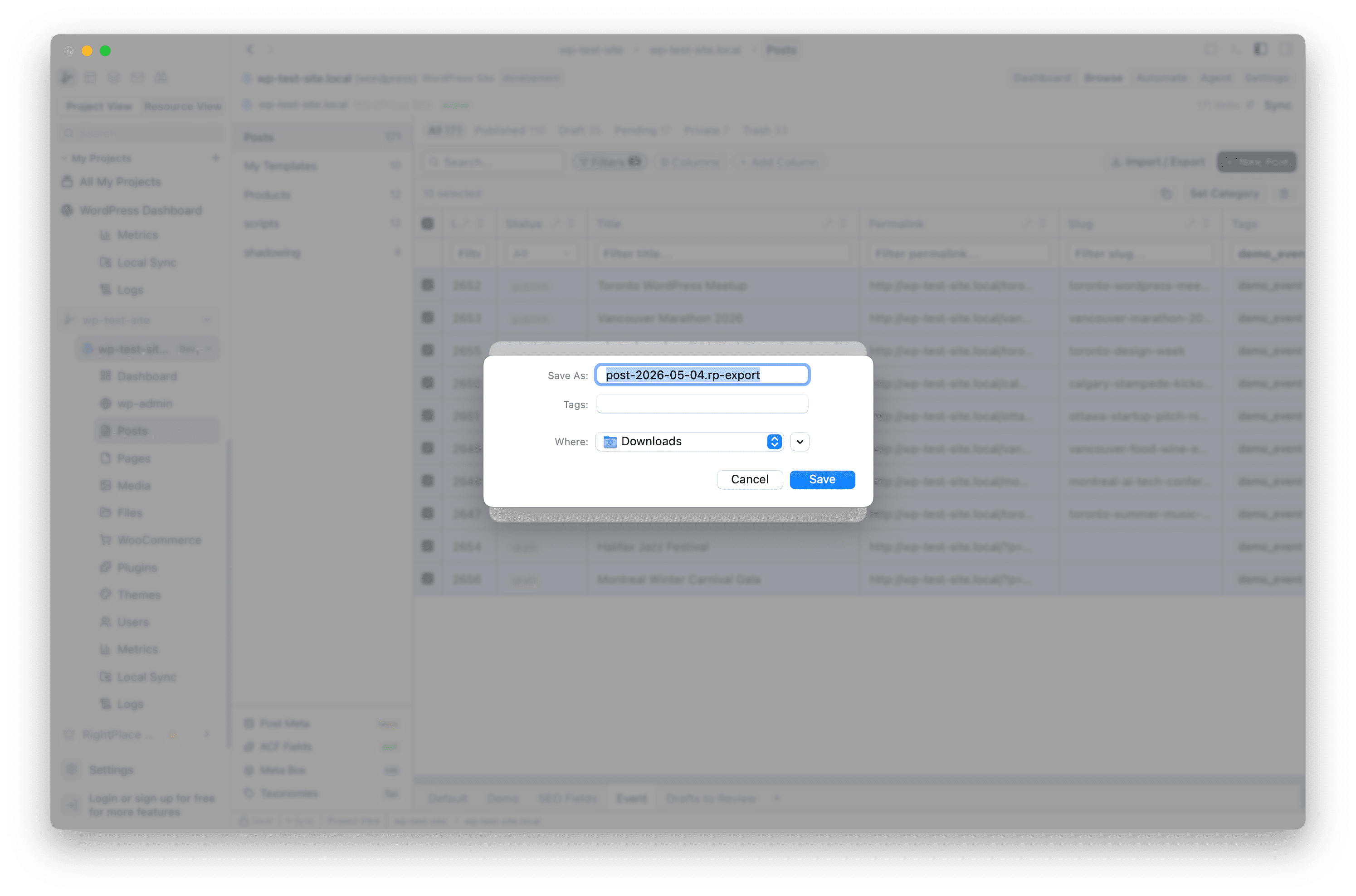
Click Export to generate the file. RightPlace creates a .rp-export file containing all selected posts and fields in a structured JSON format. Save it to a location you can find later, like your project folder or a dedicated backups directory.
Tips
- Back up before big changes: Export your content before major updates, theme changes, or plugin migrations.
- Full-site backup: Select all posts, check all fields, and export. Repeat for pages and each custom post type to get a complete content snapshot.
- Custom fields included: ACF, Meta Box, and other custom field data is preserved in the export. When you import the file later, field values come back intact.
- Rich JSON format: The
.rp-exportformat stores structured data that RightPlace can re-import with full field mapping. You can also open the file in any text editor to inspect the raw content.
Next steps
- Send Posts to Another Site: Transfer posts directly between two WordPress sites without a file
- Import Posts from CSV: Bring content into WordPress from a spreadsheet