Manage Plugins
Keep plugin ZIP files in a local folder and install them to WordPress by dragging
RightPlace lets you open a local folder and a WordPress site side by side. Keep your plugin ZIP files in one place, then drag them onto the Plugins panel to install - no uploading through the WordPress admin.
Before you start
- A WordPress site connected and fully paired
- A local folder containing plugin
.zipfiles (downloaded from vendors, marketplaces, or your own builds)
Step 1: Create a local folder for your plugins
Create a folder on your computer to store plugin ZIP files. Something like plugin-repo works well. Drop all the .zip files you want to manage into this folder.
Step 2: Add the folder as a Place
In RightPlace, click the + button in the sidebar to add a new resource. Choose Local Folder and point it to the folder you created. Give it a name like “plugin-repo” so you can find it quickly.
The folder now appears in your sidebar under your project.
Step 3: Open both panels side by side
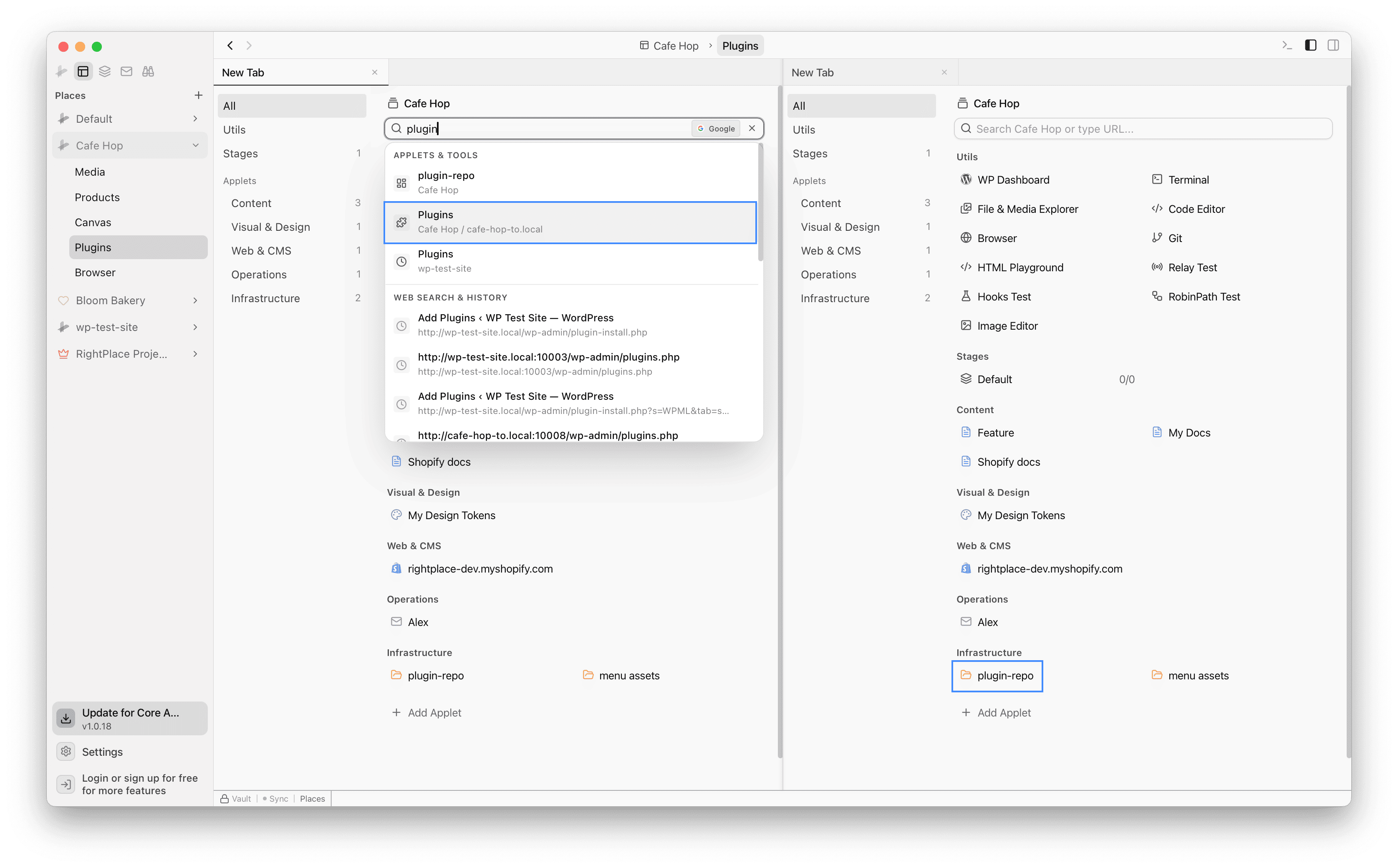
Open a new tab and search for your WordPress site’s Plugins page. Then open another tab for your local plugin folder. Arrange them side by side so you have the live plugin list on one side and your local ZIP files on the other.
Step 4: Drag plugins to install
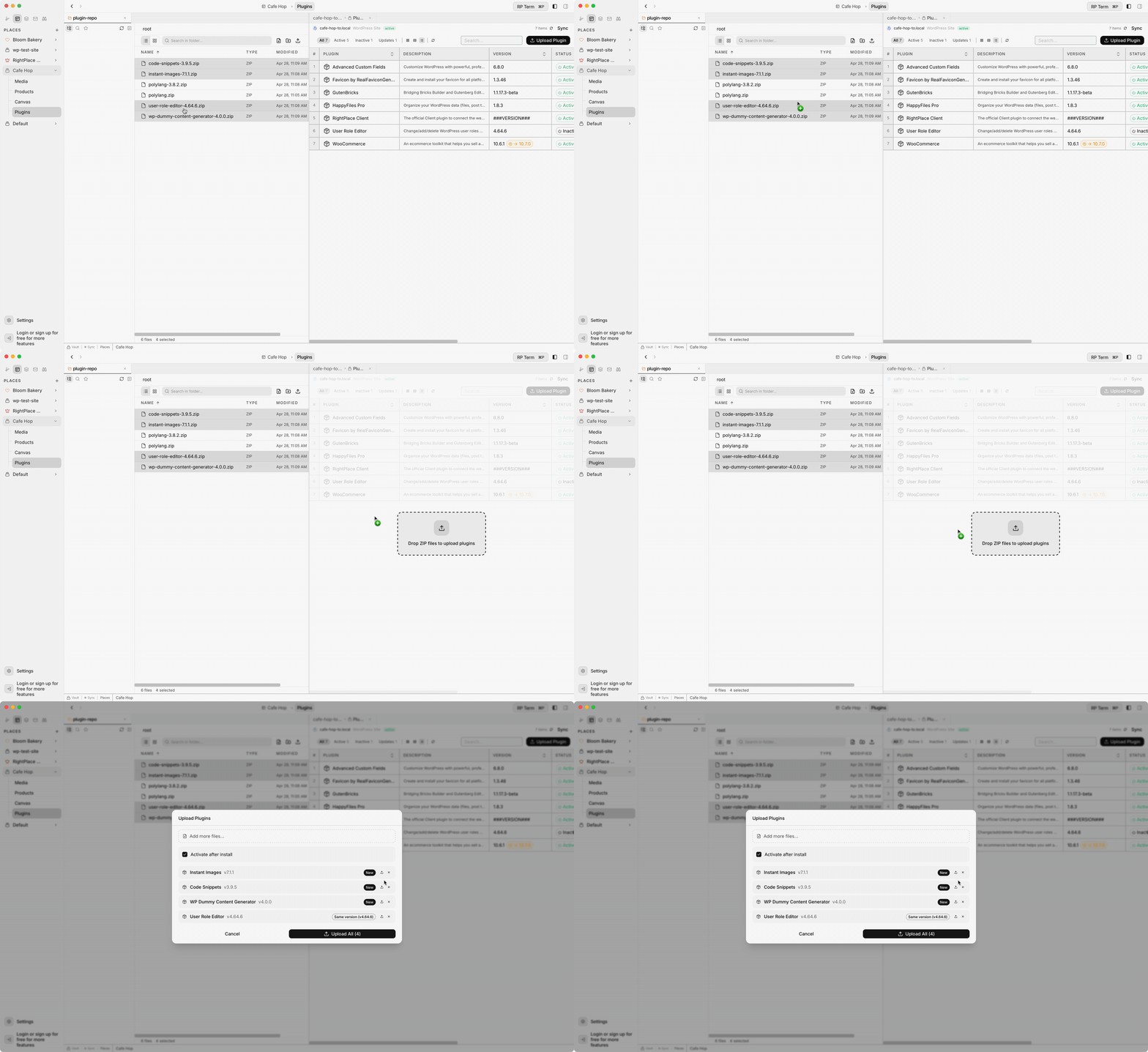
Select the plugin ZIP files you want to install from the local folder. Drag them onto the WordPress Plugins panel. RightPlace uploads and installs each plugin on your site.
You can select multiple ZIPs at once - hold Cmd (Mac) or Ctrl (Windows) and click to multi-select, then drag them all together.
Step 5: Verify installation
After the install finishes, the new plugins appear in the Plugins list. From here you can:
- Activate plugins directly from the list
- Check version numbers to confirm the right version was installed
- See update indicators if a newer version is available on wordpress.org
Tips
- Version control: Name your ZIP files with version numbers (e.g.
polylang-3.8.2.zip) so you can tell at a glance which version you have locally. - Premium plugins: This workflow is ideal for premium plugins that you download from vendor dashboards - keep them all in one folder and install across multiple sites.
- Multiple sites: The same local folder can be used to install plugins on any WordPress site in your project. Just open a different site’s Plugins tab and drag again.
- Bulk install on new sites: Setting up a fresh WordPress site? Select all your essential plugin ZIPs and drag them over in one go.
Next steps
- Manage Multiple Sites: Add several WordPress sites to one project and work across them
- Plugins: Full Plugins feature reference