Sync Bricks Templates
Pull Bricks Builder templates from WordPress to your local project folder
RightPlace can pull your Bricks Builder templates from WordPress to your local project folder. Use this to back up your templates as JSON files that you can version-control, inspect, or edit outside the app.
Before you start
- A WordPress site connected and fully paired with Bricks Builder active
- The RightPlace WordPress plugin installed on the site (provides the Bricks sync provider)
Step 1: Open Local Sync
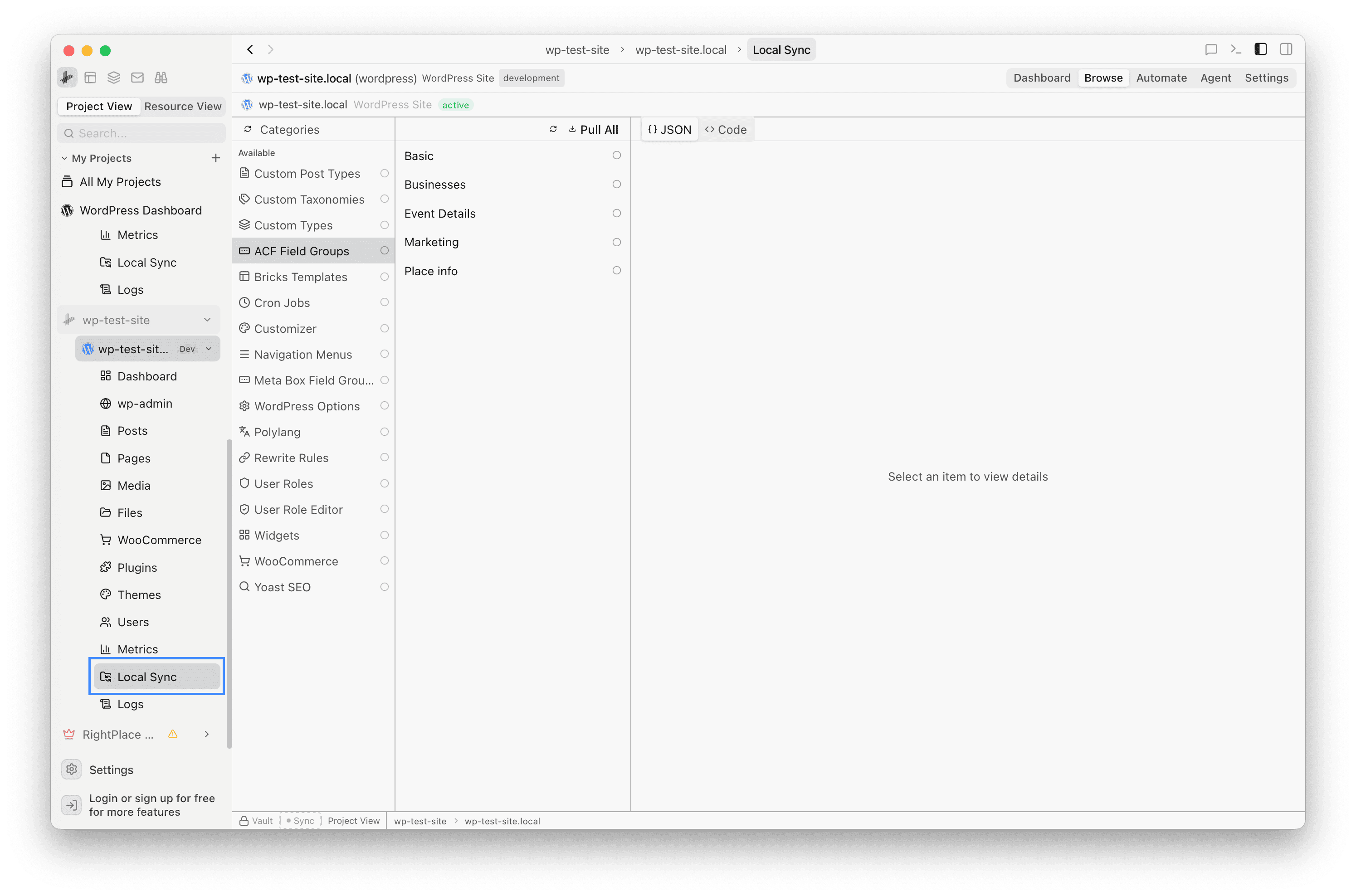
Click Local Sync in the sidebar under your WordPress site. The left panel shows an Available list of sync providers: Categories, Custom Post Types, ACF Field Groups, Bricks Templates, and more.
Step 2: Select Bricks Templates
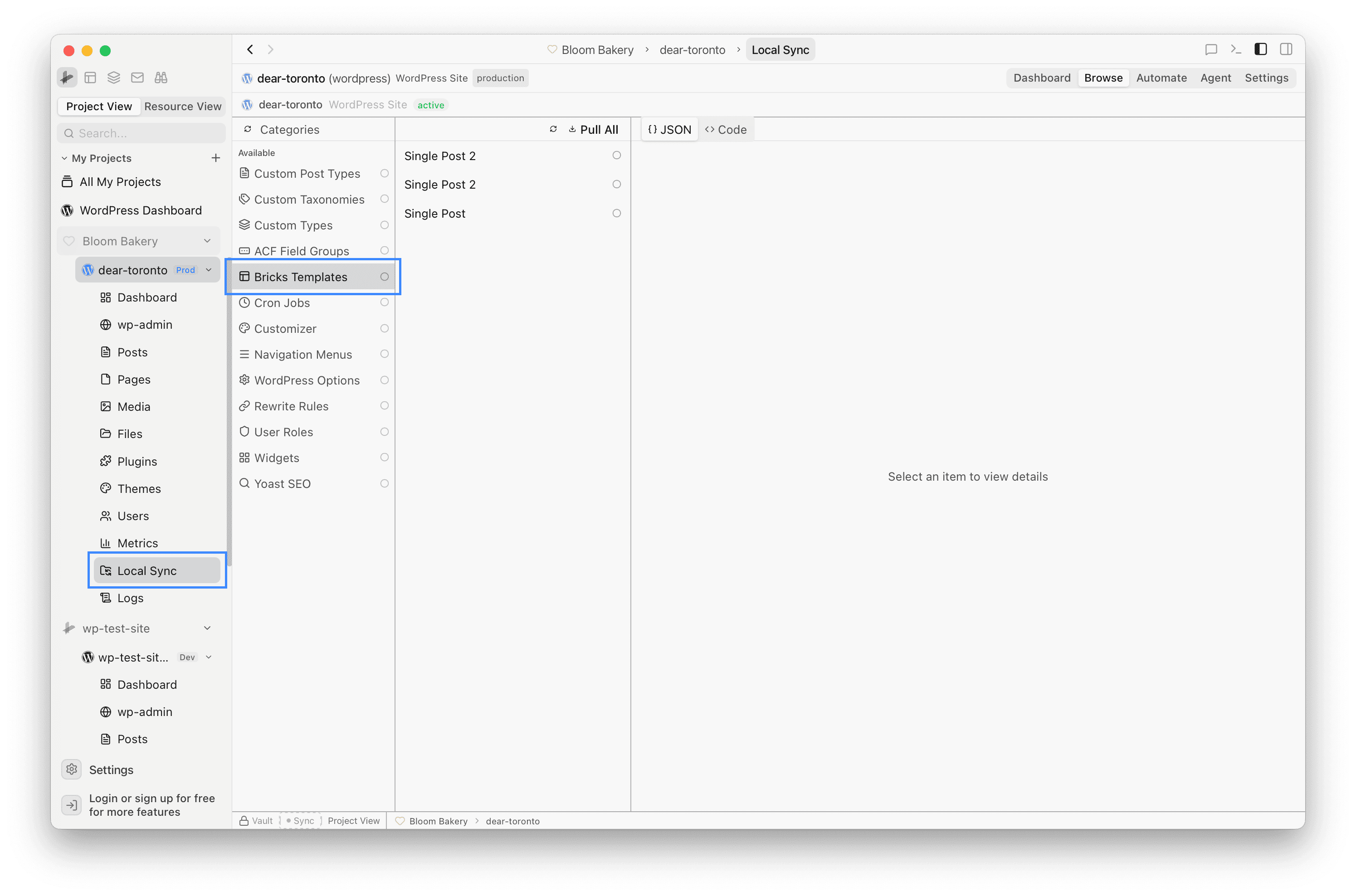
Click Bricks Templates in the Available list. The middle panel shows all Bricks templates on your site (e.g. “Single Post”, “Header”, “Footer”). You can select an individual template to inspect its JSON or Code on the right panel.
Step 3: Pull all templates
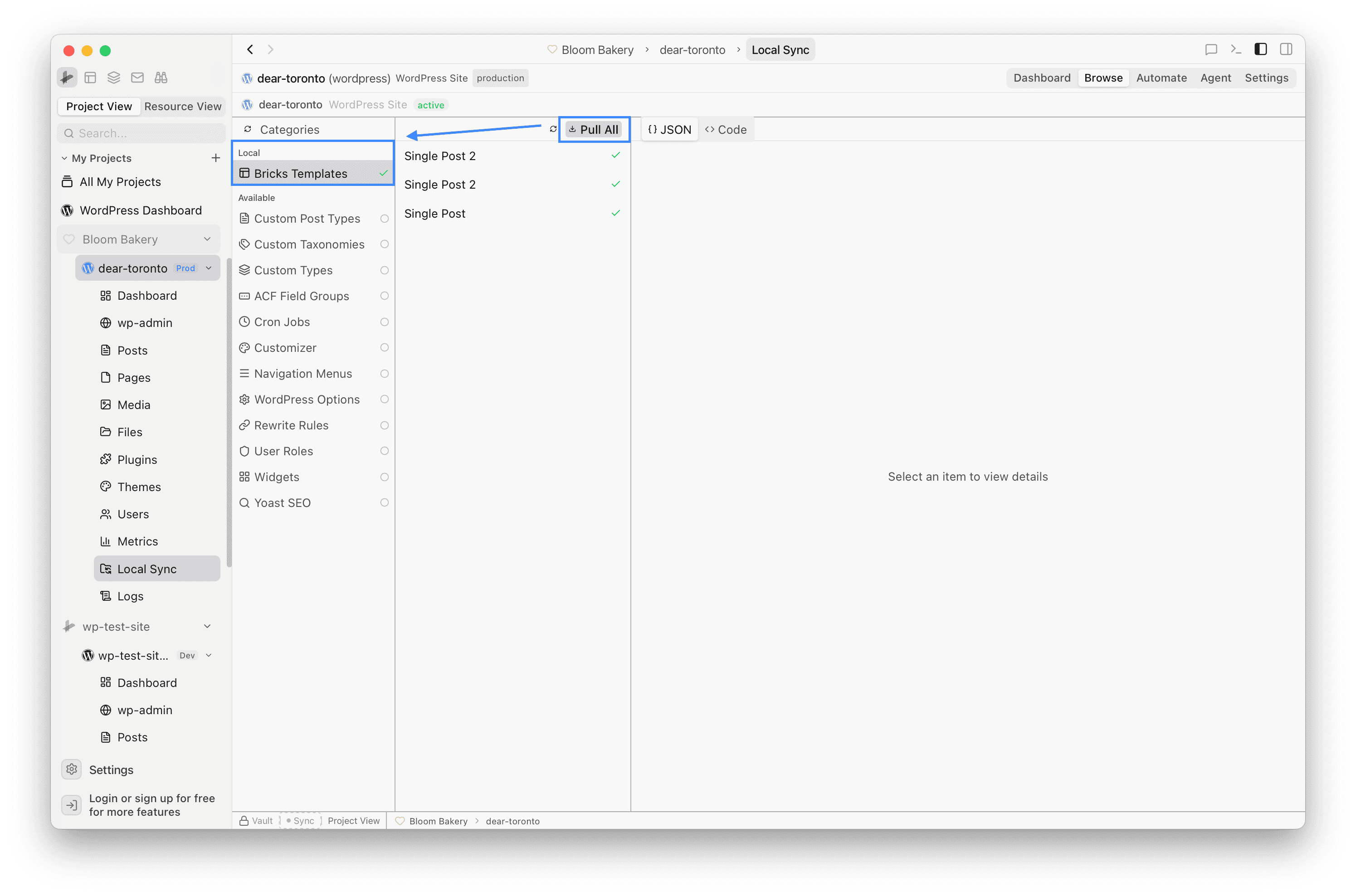
Click Pull All at the top of the middle panel to download every Bricks template from the site. Once complete, each template shows a green checkmark and Bricks Templates moves from the Available section to the Local section in the left panel.
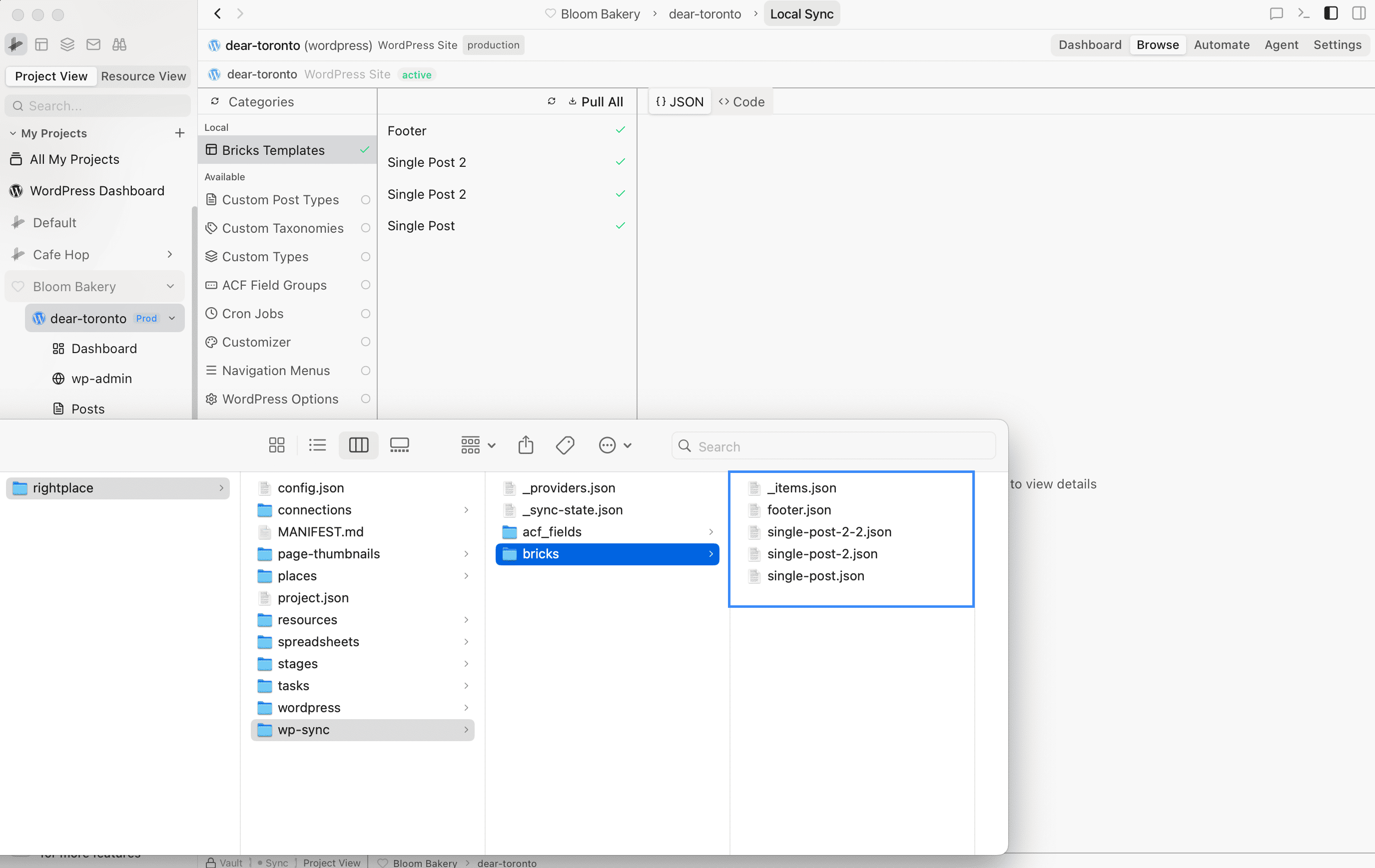
The pulled templates are saved as JSON files inside your project’s rightplace/wp-sync/bricks/ folder. Each template becomes its own file (e.g. single-post.json, footer.json), making them easy to version-control or inspect outside the app.
Step 4: Inspect the pulled data
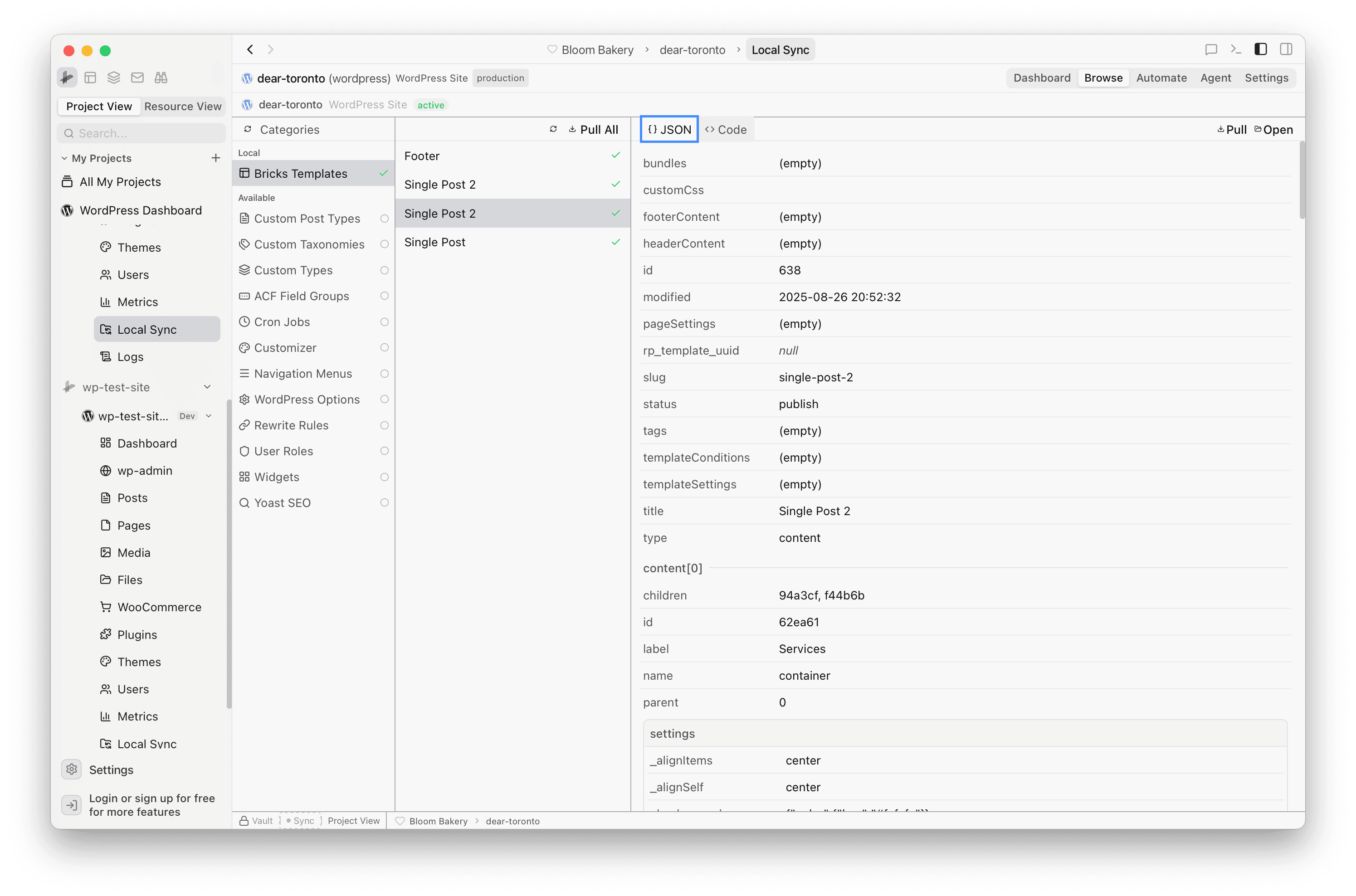
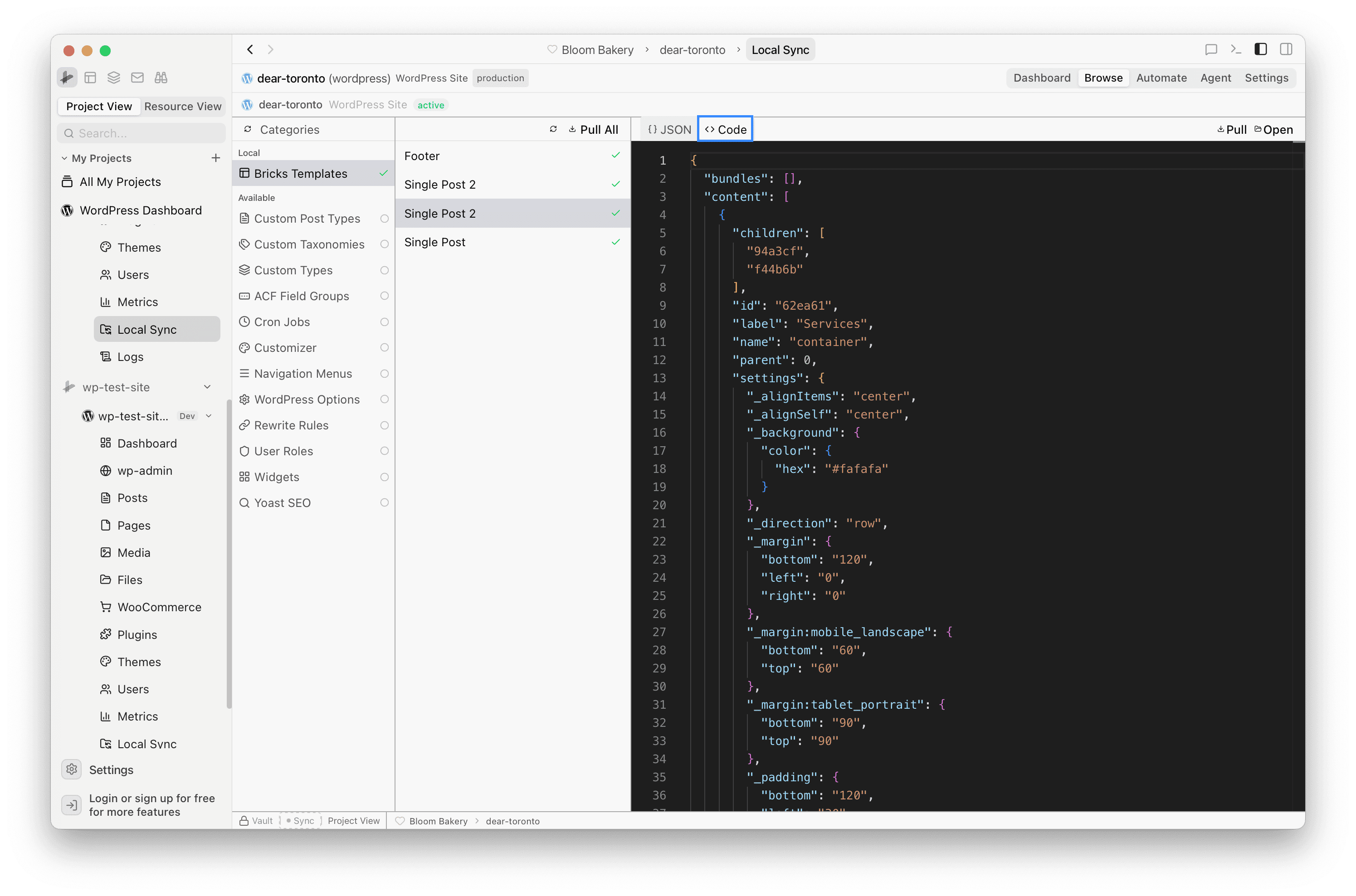
Select any template in the list and switch between the JSON and Code tabs on the right panel to view its content.
The JSON tab shows template metadata and content elements in a structured table view, including fields like title, slug, status, and nested content settings.
The Code tab displays the raw JSON source, useful for inspecting the full element tree with layout, styles, and responsive settings.
Step 5: Push local changes to WordPress
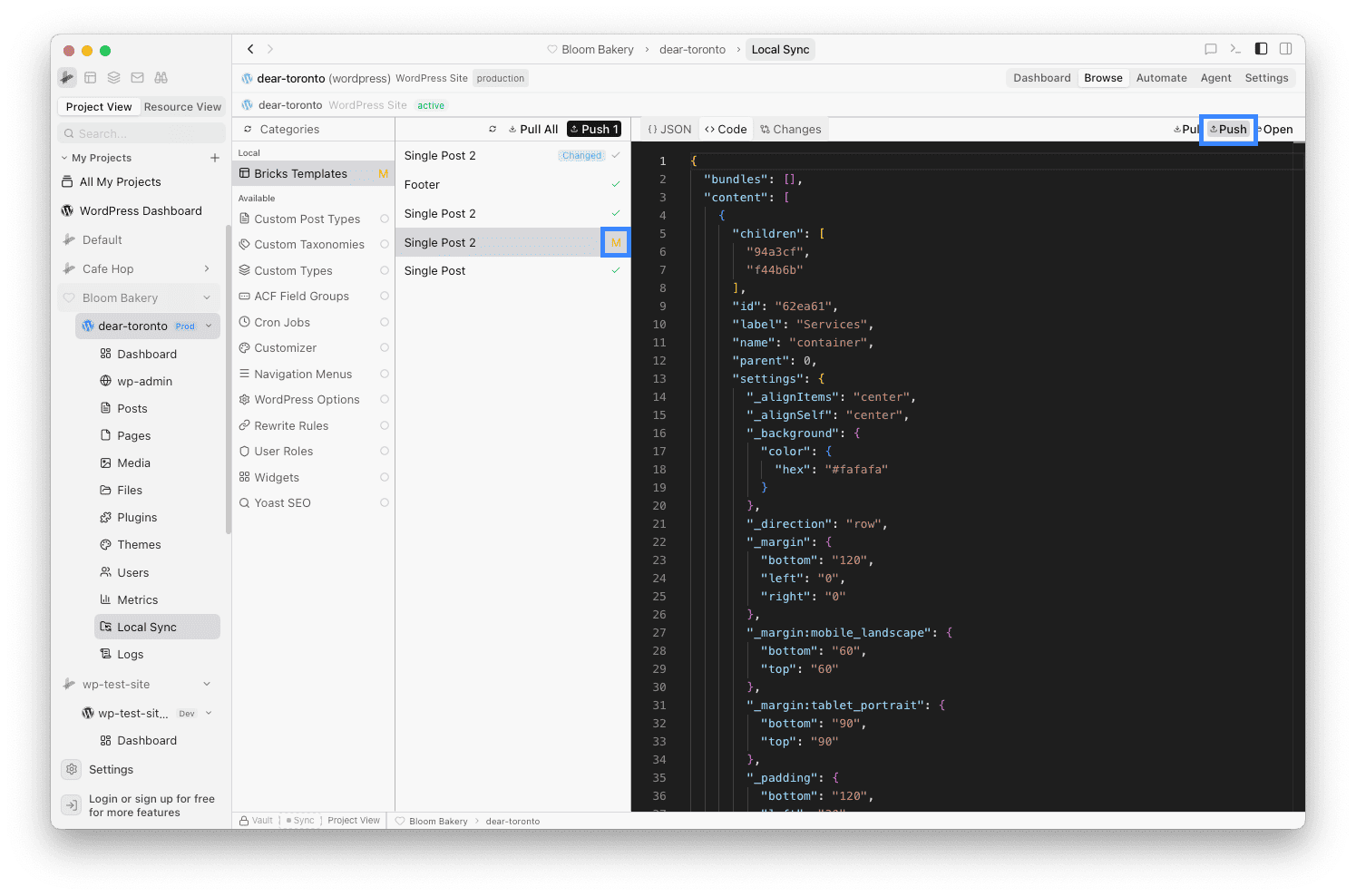
If you edit a template’s JSON file in the rightplace/wp-sync/bricks/ folder, the item is marked with an amber M badge and a Push button appears. Click Push on the individual item or Push 1 at the top to upload your local changes back to WordPress.
Step 6: Re-pull to get updates
Local Sync does not update automatically. If you modify a template in Bricks Builder (e.g. change the Footer layout), click Pull All again to download the latest version. RightPlace overwrites the local JSON files with the updated data from WordPress.
Tips
- Regular backups: Pull templates before making major design changes so you can restore a previous version if needed.
- Other sync providers: The Local Sync page supports more than Bricks. Check the Available list for other data types you can pull (Custom Post Types, ACF Field Groups, Navigation Menus, etc.).
Next steps
- Manage Plugins: Keep plugin ZIPs in a local folder and drag to install
- Manage Media: Upload images from a local folder to the Media Library