Create posts from the panel
Use the New button and side panel to add drafts or published posts without opening wp-admin
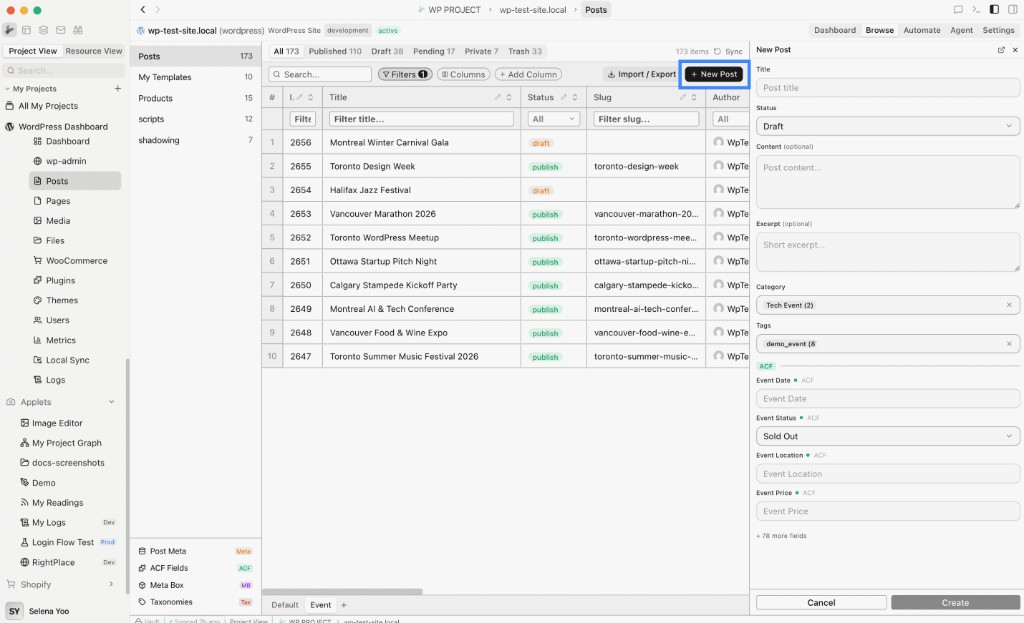
The Posts toolbar includes a primary New action (label uses your post type, for example New Post or New Menu). It opens a side panel where you set title, status, body, taxonomies, and optional custom fields. Submissions go through the WordPress API and the table refreshes when the post is created.
Before you start
- A WordPress site connected and fully paired
- The Posts tab open for the post type you want (use the left sidebar to switch types when your site registers more than one)
Step 1: Open the panel
- Open your WordPress resource and go to Posts.
- Confirm the correct post type in the left sidebar if you use custom types.
- Click New … in the toolbar (the label matches the singular name of the current type, for example New Post).
The panel header shows New plus that same type label. You can close it with the X control or cancel from the footer.
Step 2: Fill in core fields
- Title (or Name for WooCommerce products): required. The Create button stays disabled until the title is non-empty.
- Status: Draft, Publish, Pending, or Private (default is Draft).
- Content (posts): optional main body text.
- Excerpt (or product short description where applicable): optional.
- Category and Tags: optional multi-selects when your site has terms. Categories support hierarchy in the picker.
For WooCommerce products, the same entry point shows Product Data (price, sale price, SKU, stock status) and Product Image instead of the generic post content block. Use the WooCommerce docs for store-specific workflows.
Step 3: Custom fields (ACF, Meta Box, Post Meta)
When your site exposes custom fields, they appear in collapsible groups with ACF, MB, or Meta badges. Controls follow each field type (text, textarea, number, select, boolean, date, color, and so on).
Fields that are also visible as table columns in the current view show a small green dot next to the label so you can see what matches your sheet layout. If many fields are hidden from the table, use + N more fields to reveal the full list, and Show less to collapse again.
Only fields you fill are sent on create; empty values are skipped.
Step 4: Create or open in wp-admin
- Click Create to save. While the request runs, the button shows a spinner and Creating….
- On success, the form resets for another entry and the posts table syncs.
- Use Open in WordPress in the panel header if you prefer to finish in the classic block editor in a browser tab.
Errors appear above the footer with a short message; fix the issue and submit again.
Tips
- Draft-first workflow: Leave status on Draft, create several posts from the panel, then use filters or saved views to review and publish in the table.
- Columns and the panel: Add important fields as table columns first (Add Custom Columns); the green dots in the panel then mirror what your editors see in the grid.
- CPT labels: The New label always follows the current post type, so editors on mixed-type sites know which kind they are adding.
Next steps
- Bulk actions on posts: Select many rows to duplicate, set category, move to trash, or restore
- Create Views: Save filters for queues such as “Drafts this week”
- Posts: Full Posts feature reference