WordPress Site
Full WordPress management from the desktop. Manage content, media, files, plugins, themes, and users.
Media
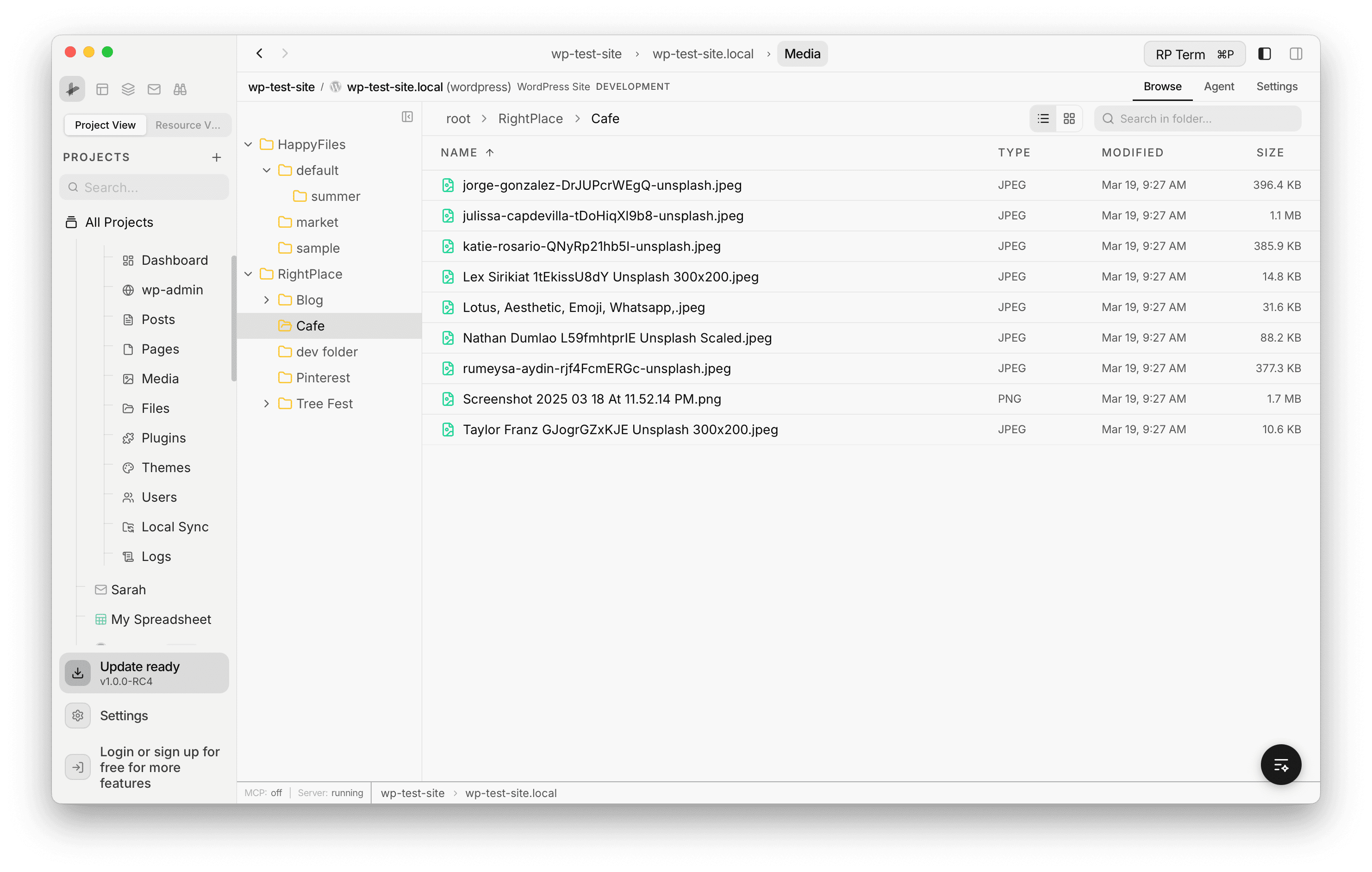
Media library file browser with folders, detail panel, and drag-and-drop
The Media view provides a file browser for your WordPress media library. Browse files by folder, switch between list and grid views, and manage media with drag-and-drop across multiple panes.
Features
- Grid and list views with folder tree sidebar
- Folder support for HappyFiles and RightPlace folder plugins
- Detail panel with metadata, URL copy, and image editor access
- Context menu for quick actions (copy URL, open in editor, cut, delete, add to folder)
- Multi-pane drag-and-drop for organizing files across folders
- Search within the current folder
List View
The list view displays files in a sortable table with Name, Type, Modified, and Size columns. The folder tree on the left shows your folder hierarchy from both HappyFiles and RightPlace folder plugins. A breadcrumb trail at the top shows the current path.
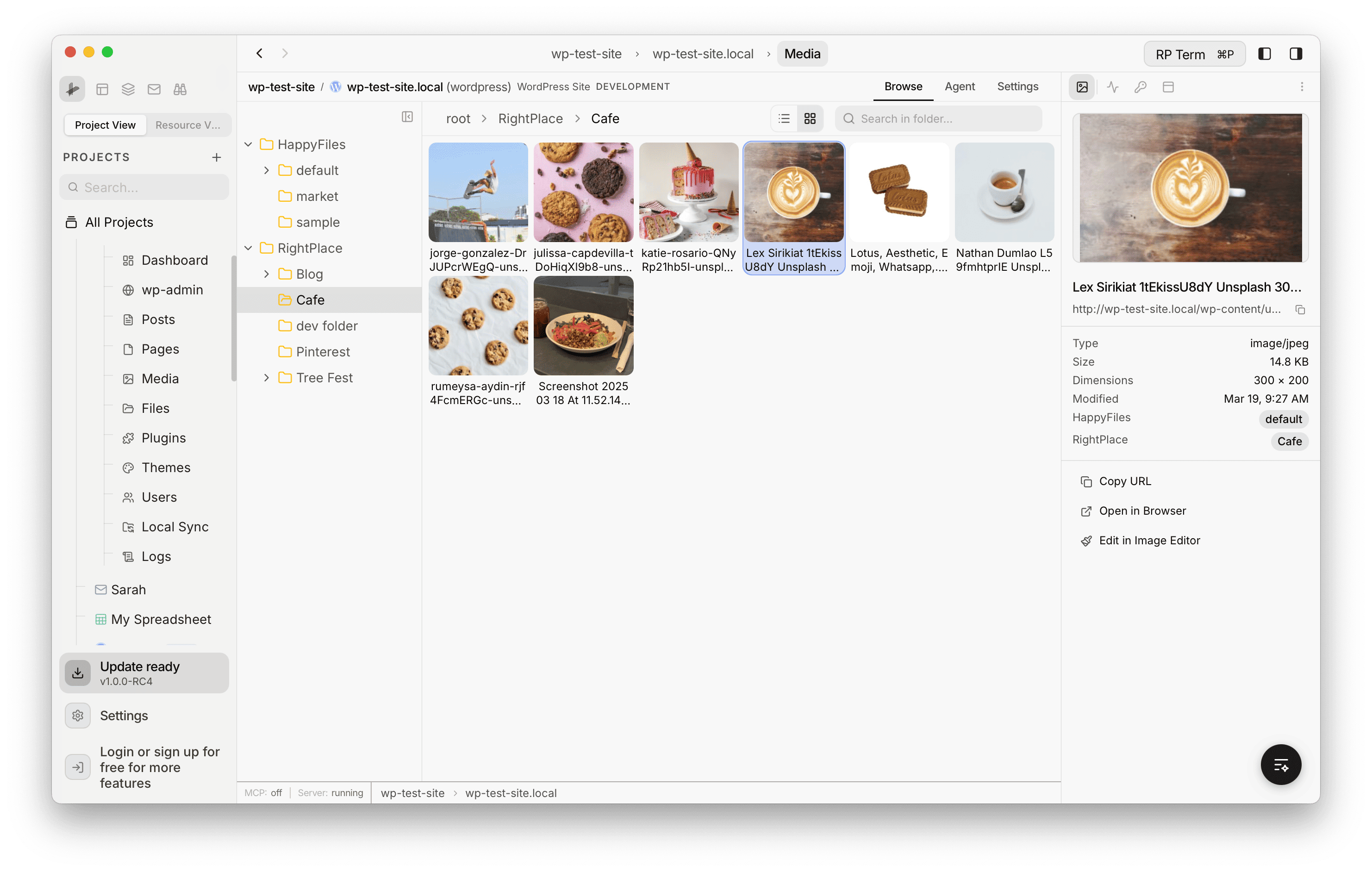
Grid View and Detail Panel
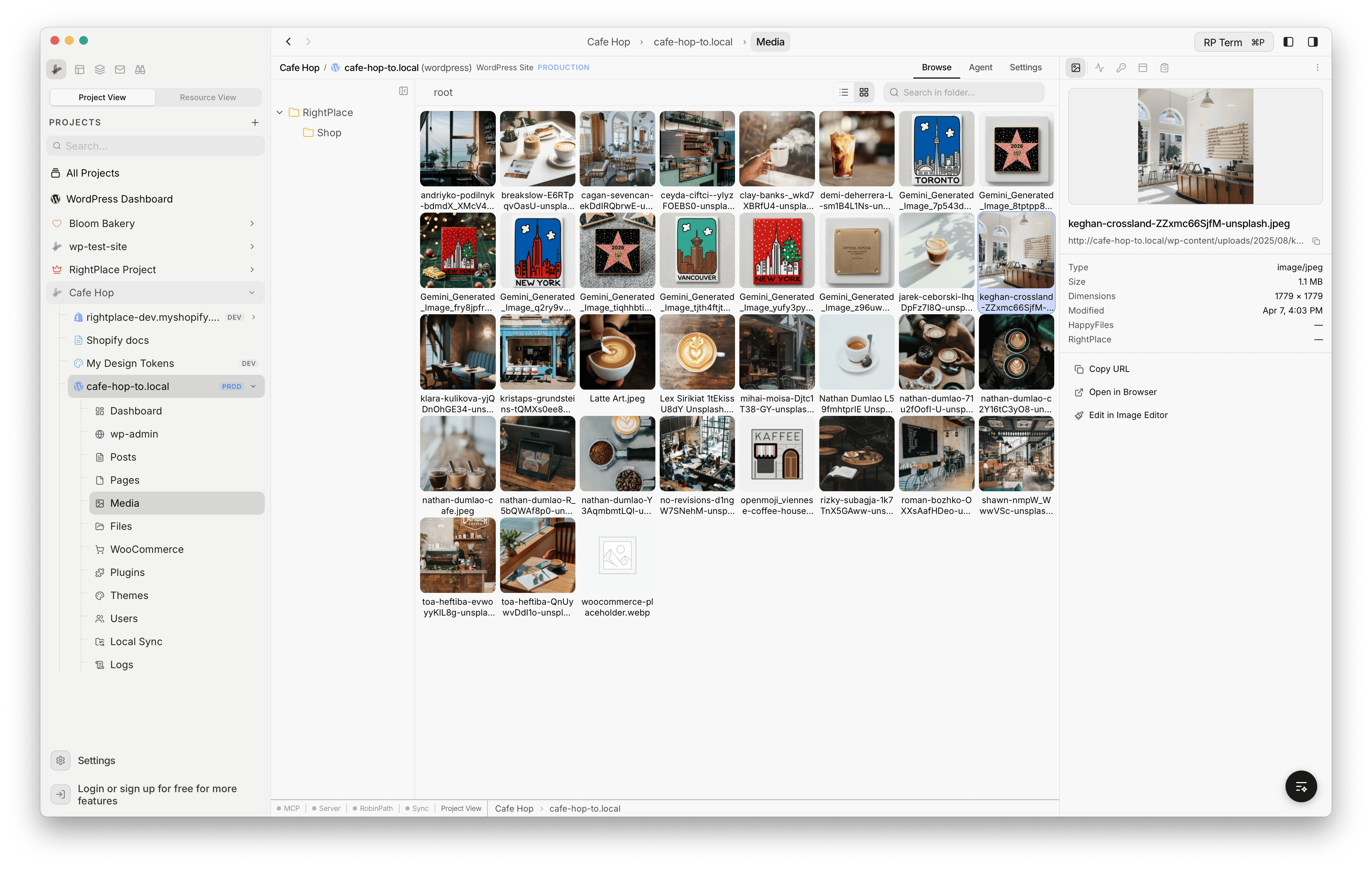
Switch to grid view to see image thumbnails. Click a file to open the detail panel on the right, which shows:
- File preview
- Filename and URL (with copy button)
- Type, size, dimensions, and modified date
- Folder assignments (HappyFiles and RightPlace)
- Quick actions: Copy URL, Open in Browser, and Edit in Image Editor
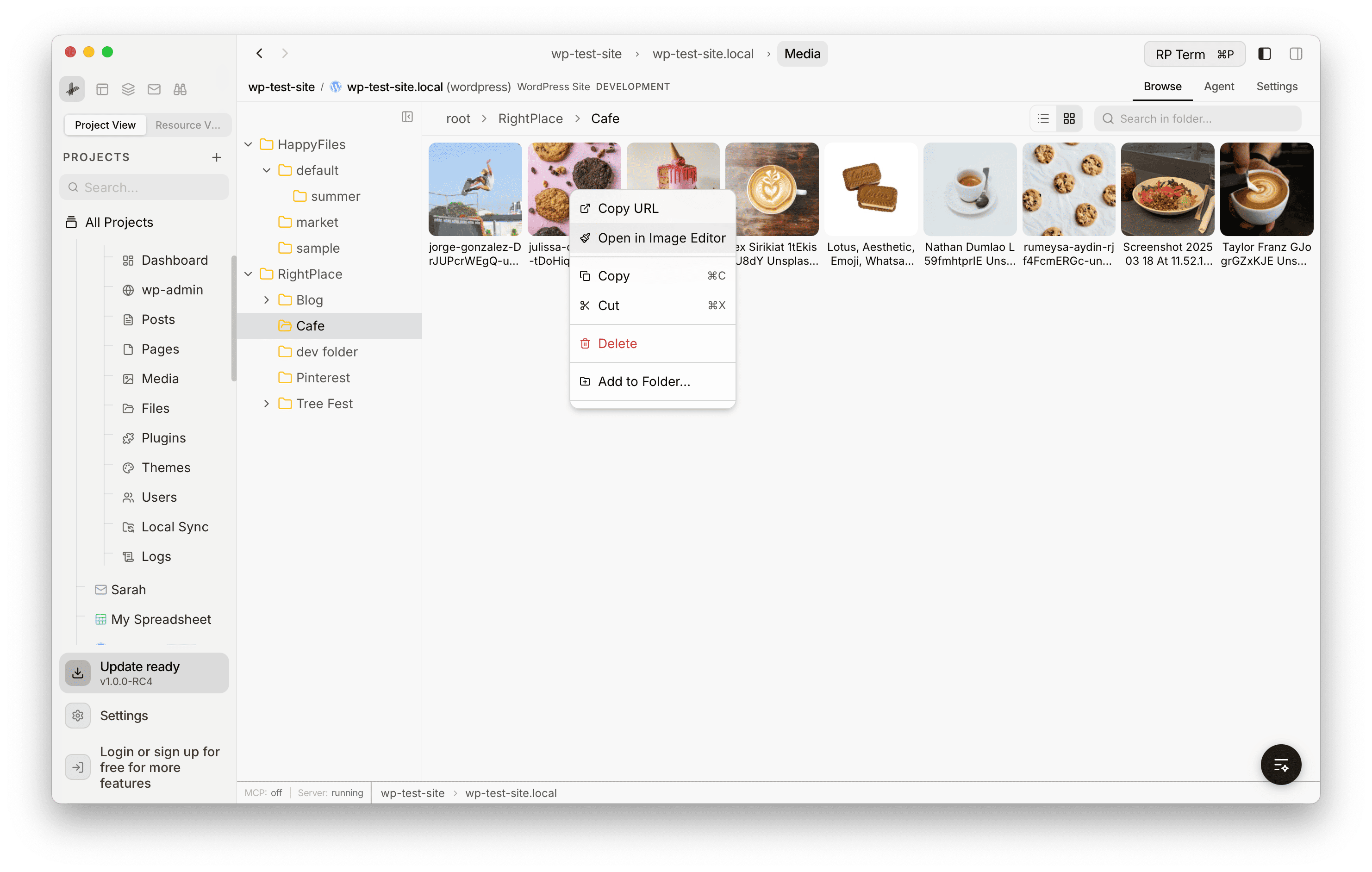
Context Menu
Right-click a file for quick actions:
- Copy URL - copy the file URL to clipboard
- Open in Image Editor - edit the image directly
- Copy / Cut - clipboard operations for moving files
- Delete - remove the file
- Add to Folder… - assign the file to one or more folders
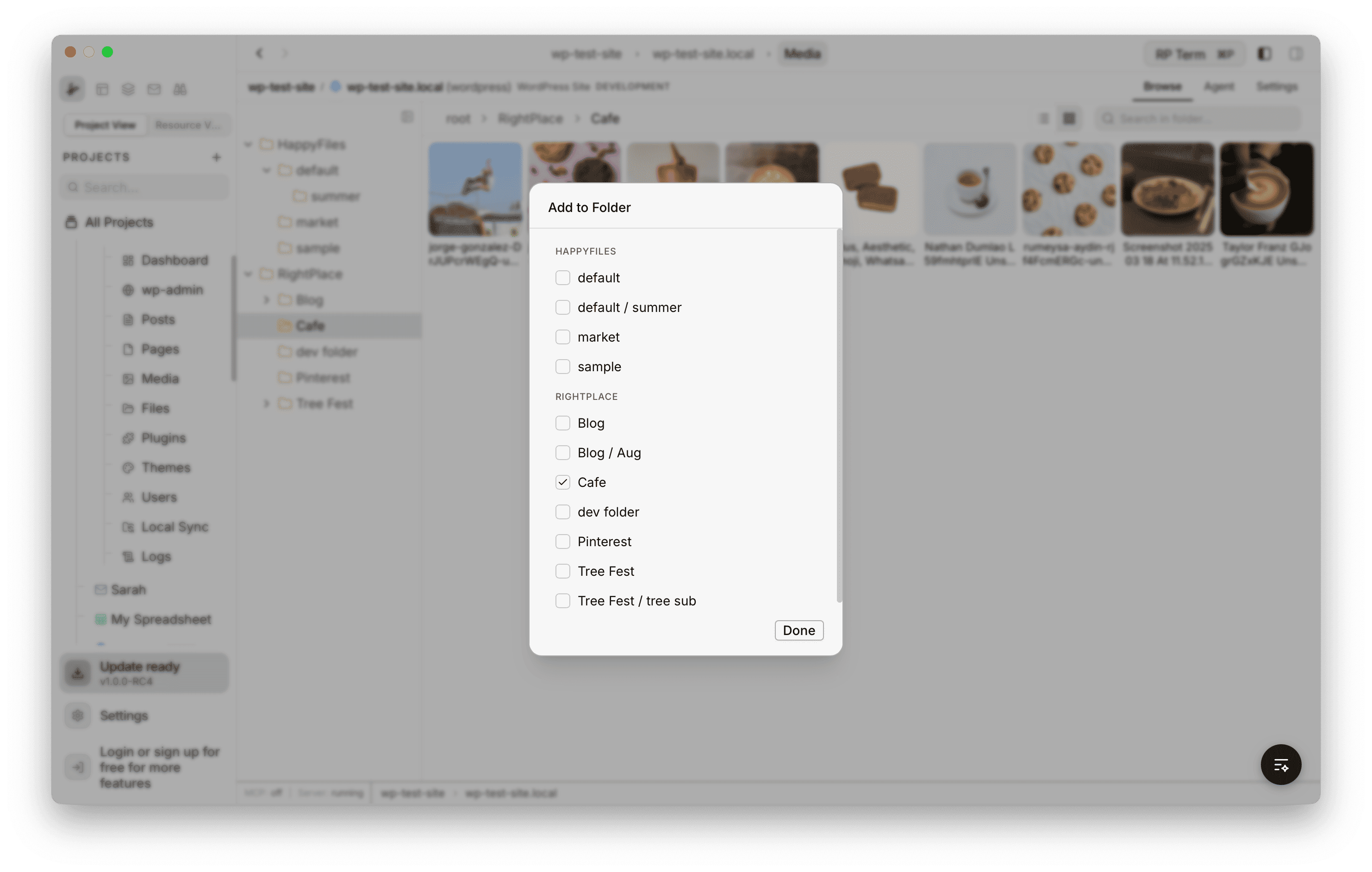
Add to Folder
Use the Add to Folder dialog (from the context menu) to assign files to folders. The dialog lists all available folders grouped by plugin (HappyFiles, RightPlace) with checkboxes. A file can belong to multiple folders.
Multi-Pane Drag and Drop
Open multiple Media panes side by side and drag files between them to organize across folders. Selected files are highlighted and a green badge shows the count being moved. This makes it easy to sort files into different folders without switching back and forth.
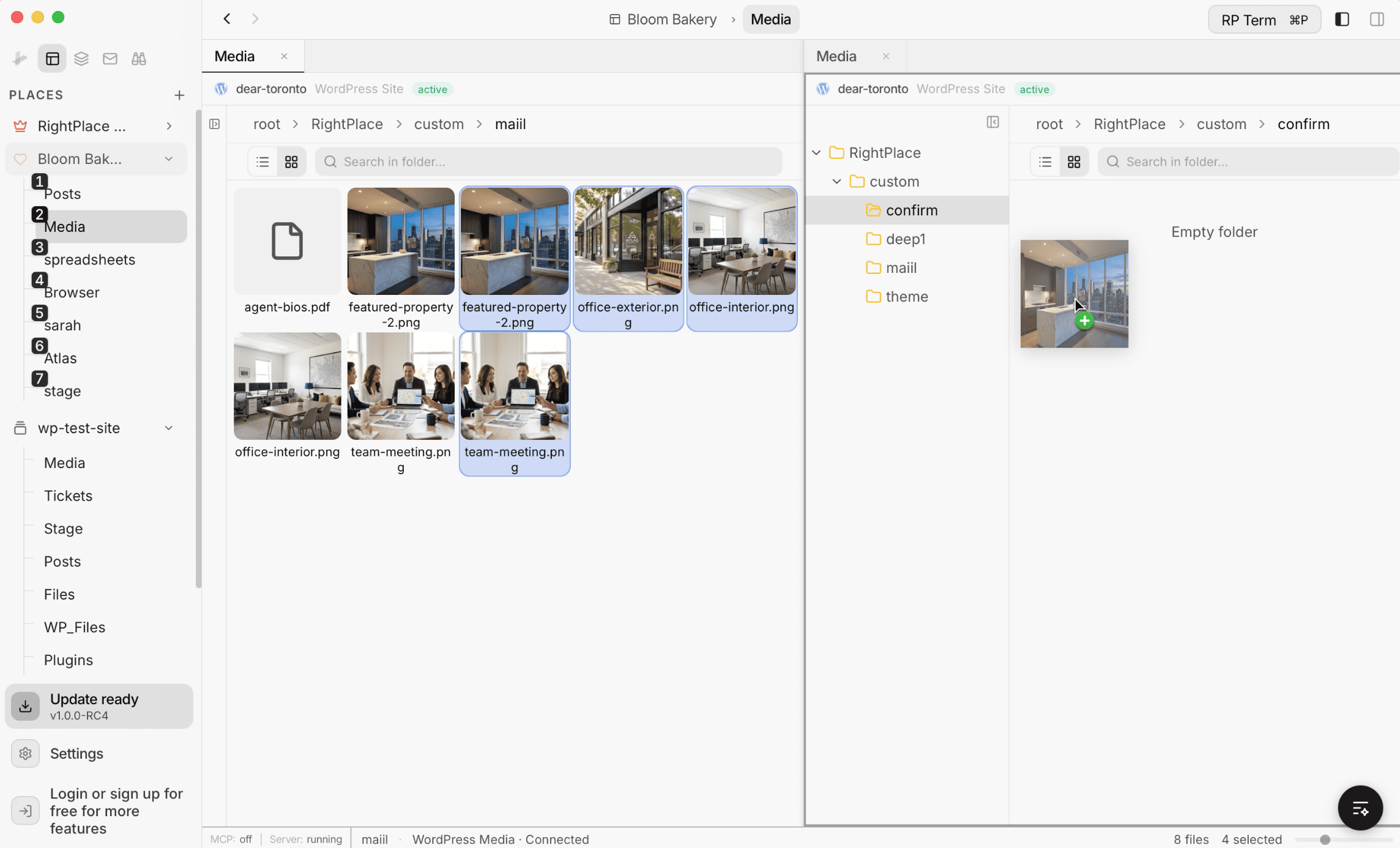
Image Editor
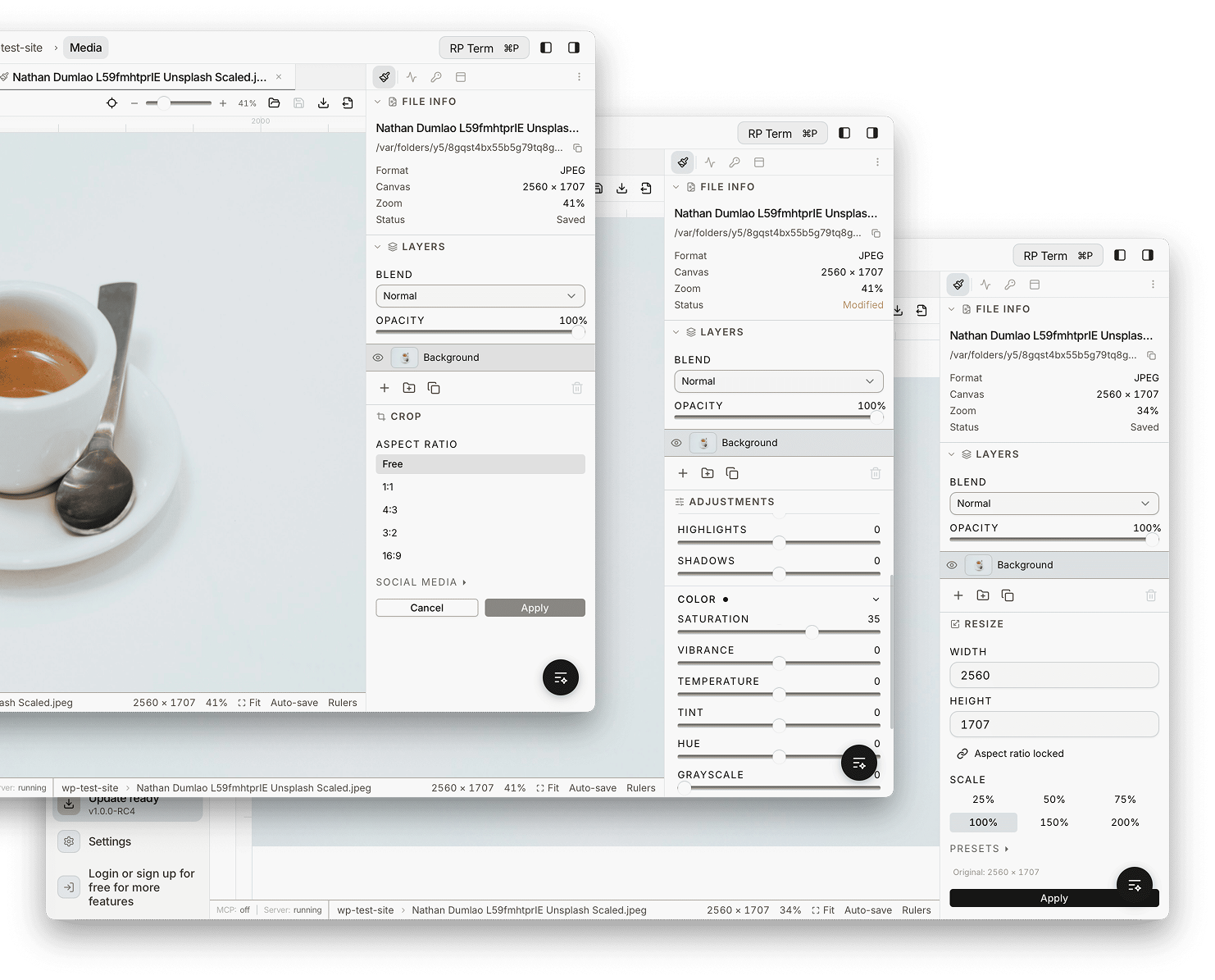
Open any image in the built-in editor by double-clicking it or selecting Open in Image Editor from the context menu. The editor opens in a new tab with a toolbar on the left, a canvas in the center, and a properties panel on the right.
The right panel always shows File Info (format, canvas size, zoom, save status) and Layers (blend mode, opacity, layer list). Below that, the properties panel updates based on the active tool.
Tools
The left toolbar provides the following tools:
- Rotate - rotate the image
- Flip - flip horizontally or vertically
- Crop - crop with preset aspect ratios (Free, 1:1, 4:3, 3:2, 16:9) or social media presets
- Resize - set width and height with aspect ratio lock, or use scale presets (25%, 50%, 75%, 100%, 150%, 200%)
- Adjustments - fine-tune highlights, shadows, saturation, vibrance, temperature, tint, hue, and grayscale
- Curves - adjust tonal curves
- Draw - freehand drawing on the canvas
- Shapes - add shapes to the image
- Text - add text overlays
- Watermark - apply watermarks
- Pen - pen tool for precise paths
- Filters - apply image filters
Changes are auto-saved and the status indicator in the File Info panel shows whether the image is Saved or Modified.
Widget
Appears when a WordPress Media table tab is active.
How it works: click a media item in the Media table.
Detail fields:
- Image or video preview
- Filename and URL with copy button
- Type, file size, dimensions, and modified date
- Folder associations: HappyFiles and RightPlace folder organization
Actions:
- Copy URL: copies the media URL to the clipboard
- Open in Browser: opens the media URL externally
- Edit in Image Editor: opens the image in the built-in image editor
Next steps
Tutorials:
- Organize Media with Folders: Use folders to keep your media library organized