WordPress Site
Full WordPress management from the desktop. Manage content, media, files, plugins, themes, and users.
Dashboard
Monitor your site's connection, updates, and server environment at a glance
The Dashboard is the default view when you open a WordPress resource. It gives you an at-a-glance overview of your site’s update status and server configuration, all without leaving the app or logging into wp-admin.
The Dashboard tab requires the site to be paired with the RightPlace plugin. If the site is not yet paired, see Connecting a WordPress Site.
Features
- Monitor connection health, session status, and plugin pairing at a glance
- Check for and apply WordPress Core, theme, and plugin updates
- View detailed server environment info (WordPress, PHP, Server, Database, Object Cache)
- Full interaction with all sections (Connection Status, Theme Updates, Plugin Updates, System Info, etc.)
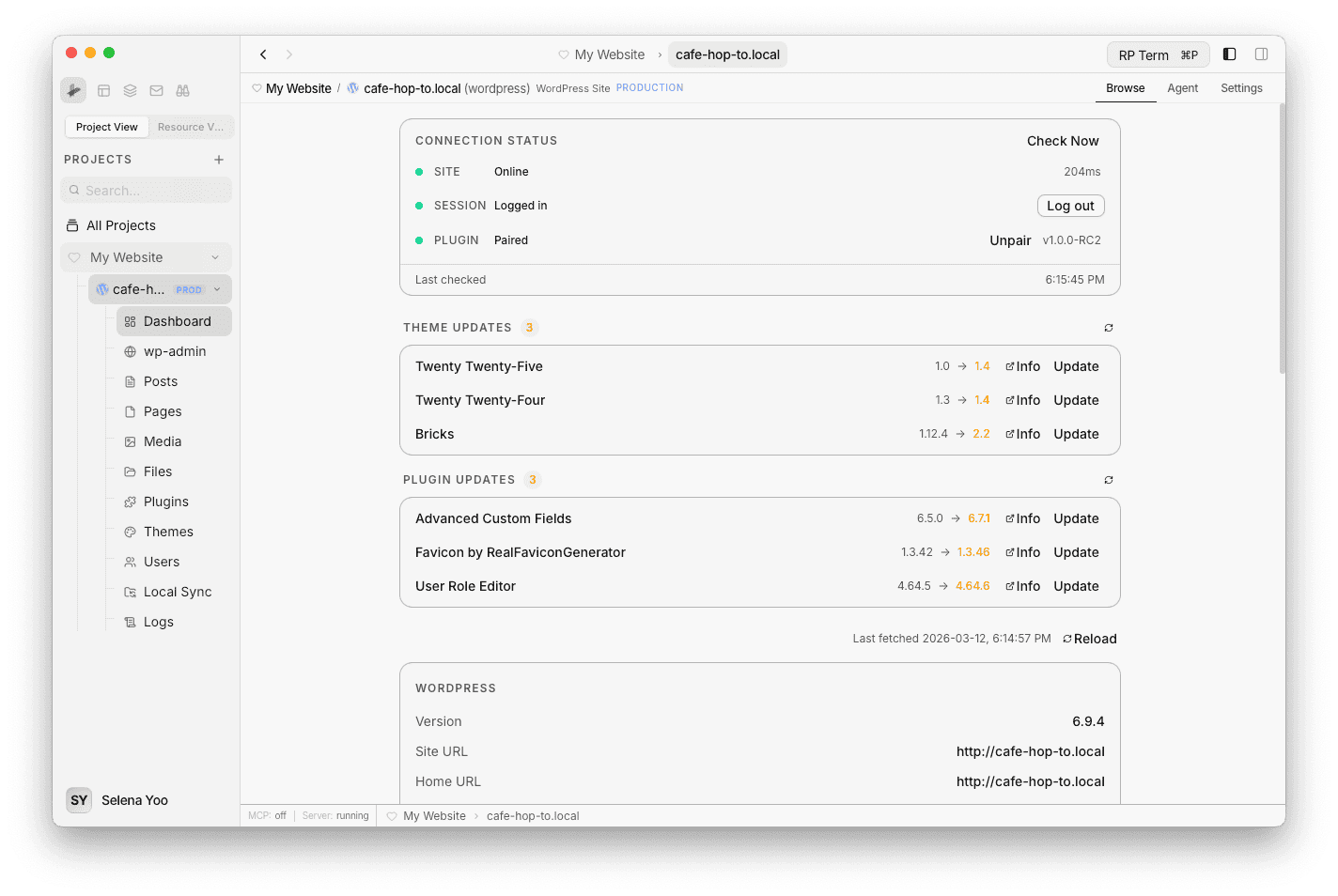
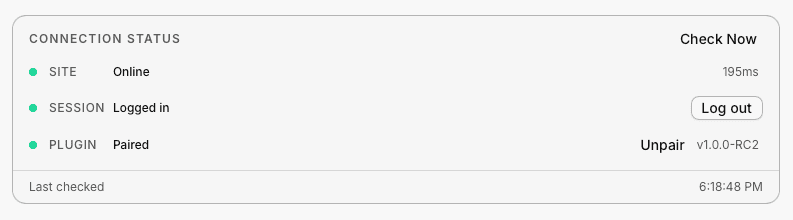
Connection Status
At the top of the Dashboard, the Connection Status section shows the health of your site’s connection:
- Site - Whether the site is online, along with response time.
- Session - Authentication status. You can log in or log out from here.
- Plugin - Whether the RightPlace Client plugin is paired, its current version, and whether a newer version is available. You can install, update, or unpair the plugin directly from this section.
A Check Now button lets you re-check the connection at any time.
Available Updates
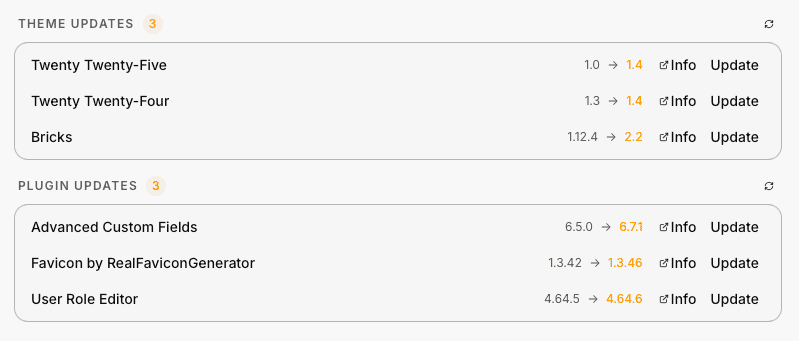
The Dashboard checks your site for available updates across three categories: WordPress Core, Themes, and Plugins. Each update shows the current version, the new version, an Info link to the WordPress.org listing, and an Update button. Count badges indicate how many updates are pending per category. When everything is current, a green checkmark confirms your site is up to date.
System Information
Below the updates, the Dashboard displays detailed information about your site’s environment in a series of cards:
- WordPress - Version, Site URL, Home URL, Language, Timezone, Permalink structure, Multisite status, Debug Mode, WP Cron, Memory Limit, and Max Memory.
- PHP - Version, SAPI, Memory Limit, Max Execution time, Upload Max, Post Max, Max Input Vars, and loaded Extensions count.
- Server - Software, OS, Hostname, and HTTPS status.
- Database - Version, Engine (MySQL or MariaDB), Table Prefix, Charset, and Collation.
- Object Cache - External Cache status and Drop-in status.
All data is fetched from the paired site and can be refreshed with the Reload button.