Global Search
Search across all projects, files, emails, and more from one place
RightPlace includes a unified search system that lets you find anything across all your projects. There are two search interfaces: Global Search for deep content search across all indexed data, and Quick Navigation for fast jumping between pages, resources, and commands.
Global Search
Opening Global Search
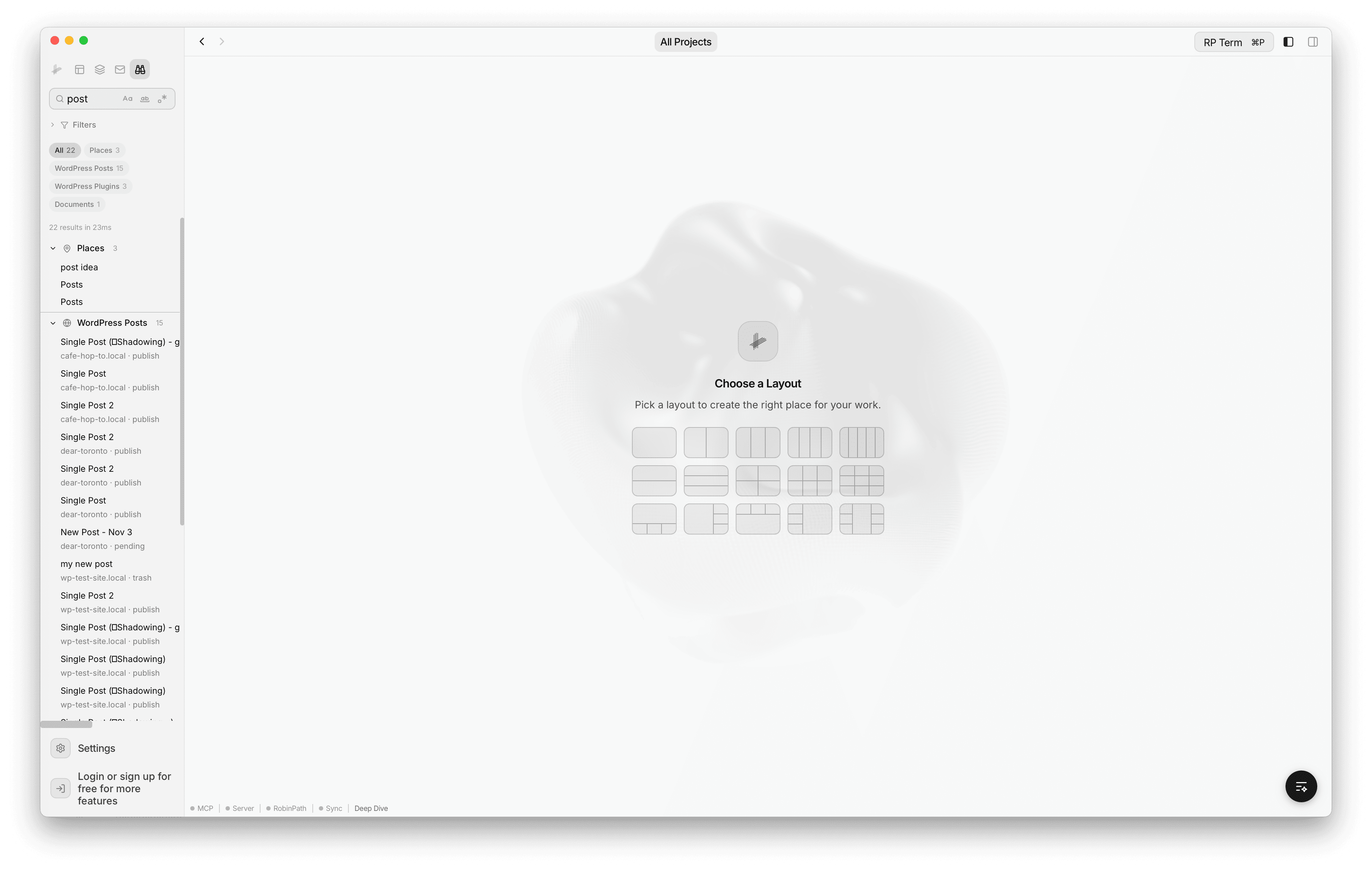
Press Cmd+Shift+F to open Global Search in the sidebar. You can also click the Deep Dive icon in the sidebar view switcher.
Search Input
Type your query in the search input at the top. Results appear as you type with a short debounce delay. The result count and search duration are displayed below the category pills (e.g. “22 results in 23ms”).
Three modifier toggles sit next to the input:
- Match Case (Aa): restrict results to exact case matches
- Whole Word (ab): only match complete words, not partial matches
- Regular Expression (.*): use regex patterns in your query
Searchable Content
Global Search indexes 13 content types across all your projects:
- Projects: project names and descriptions
- Places: place titles
- Connections: connection names
- Tasks: task titles and body content
- WordPress Posts: title, content, and slug
- WordPress Pages: title, content, and slug
- WordPress Plugins: plugin name and description
- WordPress Themes: theme name and description
- WordPress Users: display name and email
- WordPress Media: file name, alt text, and description
- Documents: full-text search of all
.mdfiles in your docs folders - Email Messages: subject, sender, and snippet (full-text indexed)
- Contacts: name and email address
Results
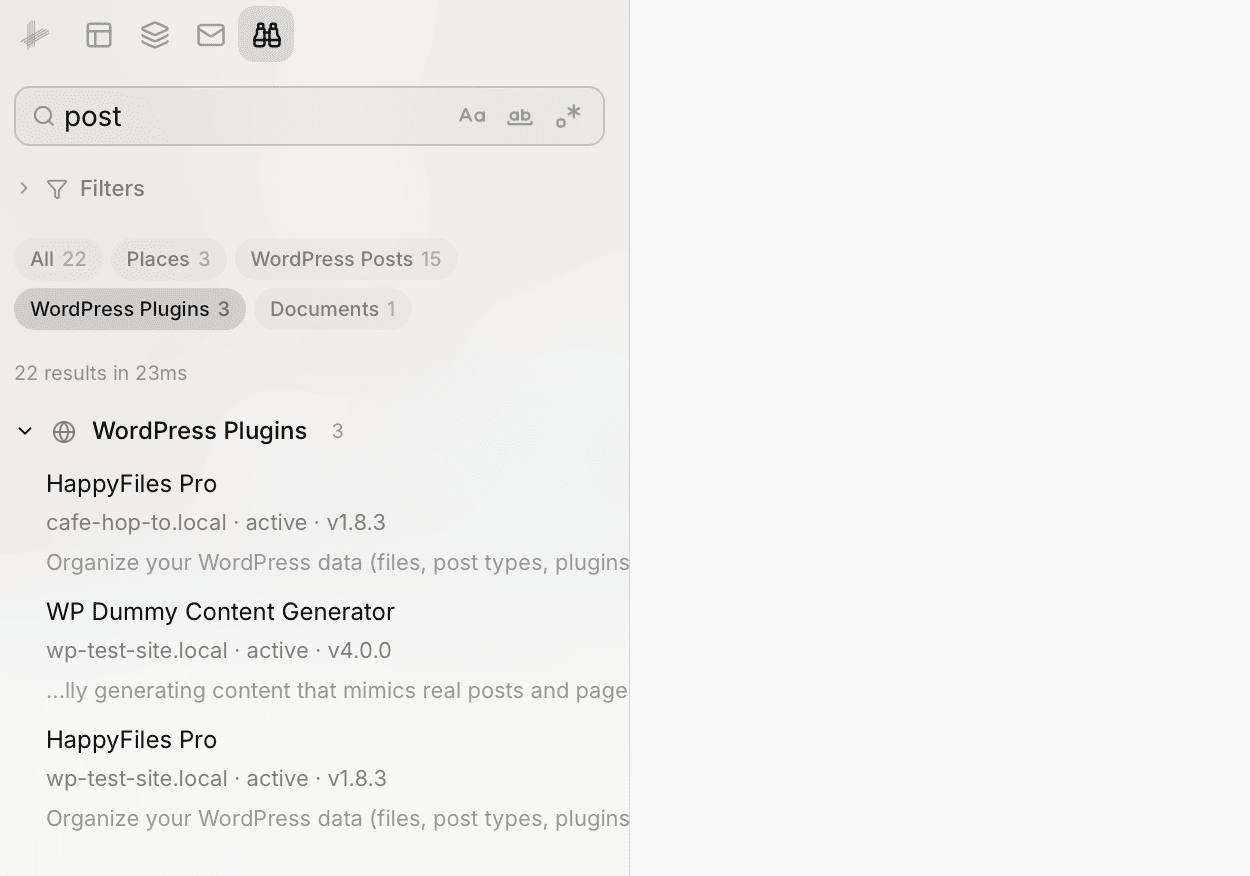
Results are grouped by content type. Each group shows a category icon, label, and result count. You can click a group header to collapse or expand it.
- Category pills at the top let you quickly filter to a single content type. Each pill shows the category name and count (e.g. “WordPress Posts 15”, “Documents 1”). Click a pill to show only that category’s results.
- Each result shows a title and a subtitle with metadata like the site name and status (e.g. “wp-test-site.local, publish”)
- For content types like plugins, a match snippet with context is also shown below the subtitle
- Click any result to navigate directly to the matched item
- Groups show up to 20 results initially. Click Show all N results to see the rest.
Filters
Click the Filters accordion below the search input to refine your results. An active filter count badge shows when filters are applied.
Two filter types are available:
- Project filter: select which projects to include or exclude from results. Use the mode toggle to switch between Include (only search selected) and Exclude (search everything except selected).
- Type filter: select which content categories to include or exclude. Same include/exclude mode toggle.
Filter selections persist across sessions.
Empty States
- Before typing a query: “Search across projects, files, emails and more”
- No results found: a centered message indicating no matches
Quick Navigation
Opening Quick Navigation
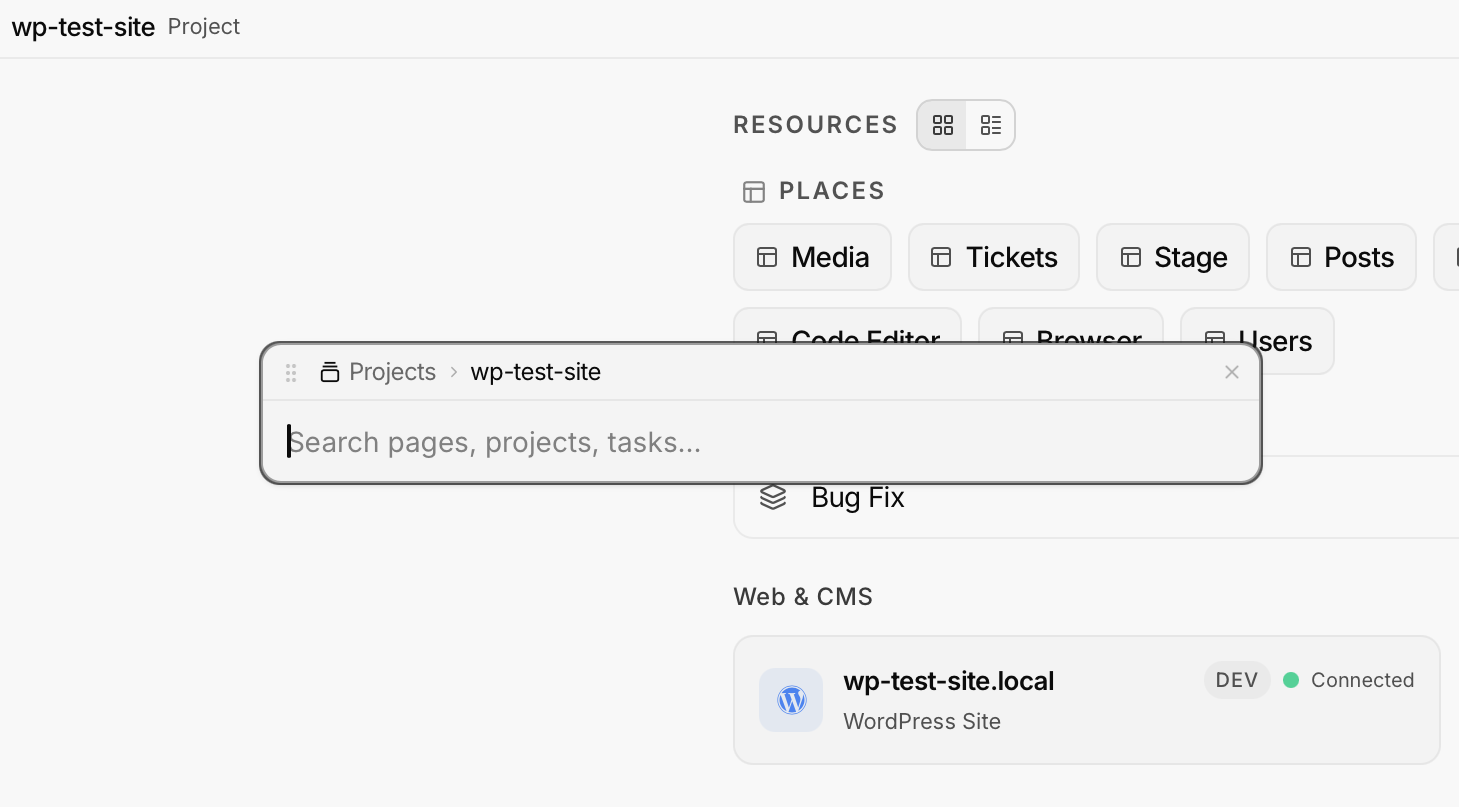
Press Cmd+P to open the Quick Navigation panel. It appears as a floating panel that you can drag and resize.
Search Mode
By default, Quick Navigation searches across all indexed items. Type to filter and use arrow keys to navigate results, then press Enter to jump to the selected item.
Results are grouped in a fixed order:
- Resources: all project resources (WordPress sub-pages, databases, spreadsheets, etc.)
- Projects: your projects sorted with the active project first
- Places: all places across projects
- Tasks: tasks from all projects
- Tabs: currently open tabs
- Pages: static pages like Settings, New Tab, and more
- History: recently visited pages ranked by visit frequency
Each category shows up to 5 results. Results from the current project are prioritized to the top.
Command Mode
Type / to enter command mode. Available commands depend on the active tool:
- Terminal:
clear,kill - Browser:
back,forward,reload - Editor:
save,format - Files:
refresh,newfolder - Global:
close-tab,close-panel
Panel Controls
- Drag the panel header to reposition it anywhere on screen
- Resize by dragging the right edge (min 300px, max 900px)
- Position and size persist across sessions
- The panel automatically re-centers if dragged off-screen
Context Menu Search
Right-click on any selected text in the app and choose Search in App to open Quick Navigation with that text pre-filled as the search query.
Keyboard Shortcuts
- Cmd+Shift+F: open Global Search in the sidebar
- Cmd+P: toggle Quick Navigation panel
Both shortcuts are customizable in Settings > Shortcuts.
Next steps
- Stages: Organize work with kanban boards
- Design Tokens: Manage design system primitives