Stage
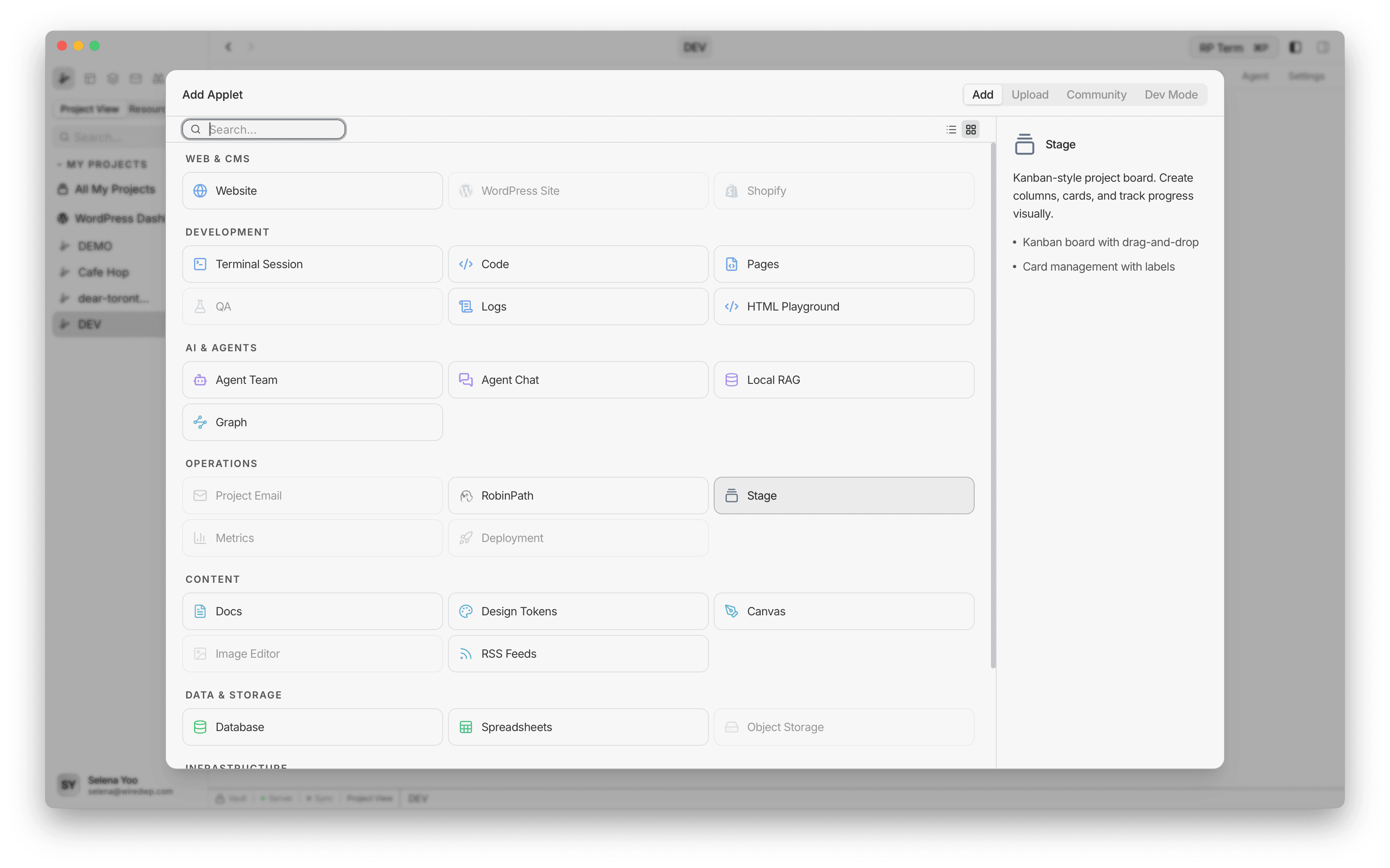
Kanban-style project board. Create columns, cards, and track progress visually.
Features
- Stage-based task workspace with multiple views
- Nested tasks with drag-and-drop reordering
- Status workflow from backlog to done
- Labels, resource links, and place links on tasks
Stage is RightPlace’s project work applet for organizing tasks inside a stage. It supports nested task trees, status tracking, labels, and links back to applets and places.
Plan it, track it, ship it - all in one place
Every team tracks work somewhere. The problem is that “somewhere” is never where the actual work happens. Your board is in one app, your code is in another, your docs are in a third. You spend half your time copying links between them.
Stage puts your task board directly inside the project, right next to the applets and places where the work gets done. A task can link to the exact doc, terminal, database, or deployment it relates to - and you can open any of them in a new tab without leaving the board.
- Tasks next to the tools. Your kanban board lives in the same workspace as your code editor, terminal, docs, and everything else. No context switching.
- Nested task trees. Break work down into subtasks as deep as you need. Drag and drop to reorder and restructure.
- Status workflow built in. Move tasks from backlog to todo to in-progress to review to done. See progress at a glance.
- Link to anything in the project. Attach applets and places to any task. One click opens the linked resource in a new tab, ready to work.
- Multiple views. Switch between list, board, and canvas views depending on whether you are planning, executing, or reviewing.
Adding a Stage
Open Add Applet and choose Stage in Operations.
Stage workspace
A stage opens into the stage editor and can be reached from:
/stagesoverview- Project stage routes such as
/project/:projectId/stage/:stageId
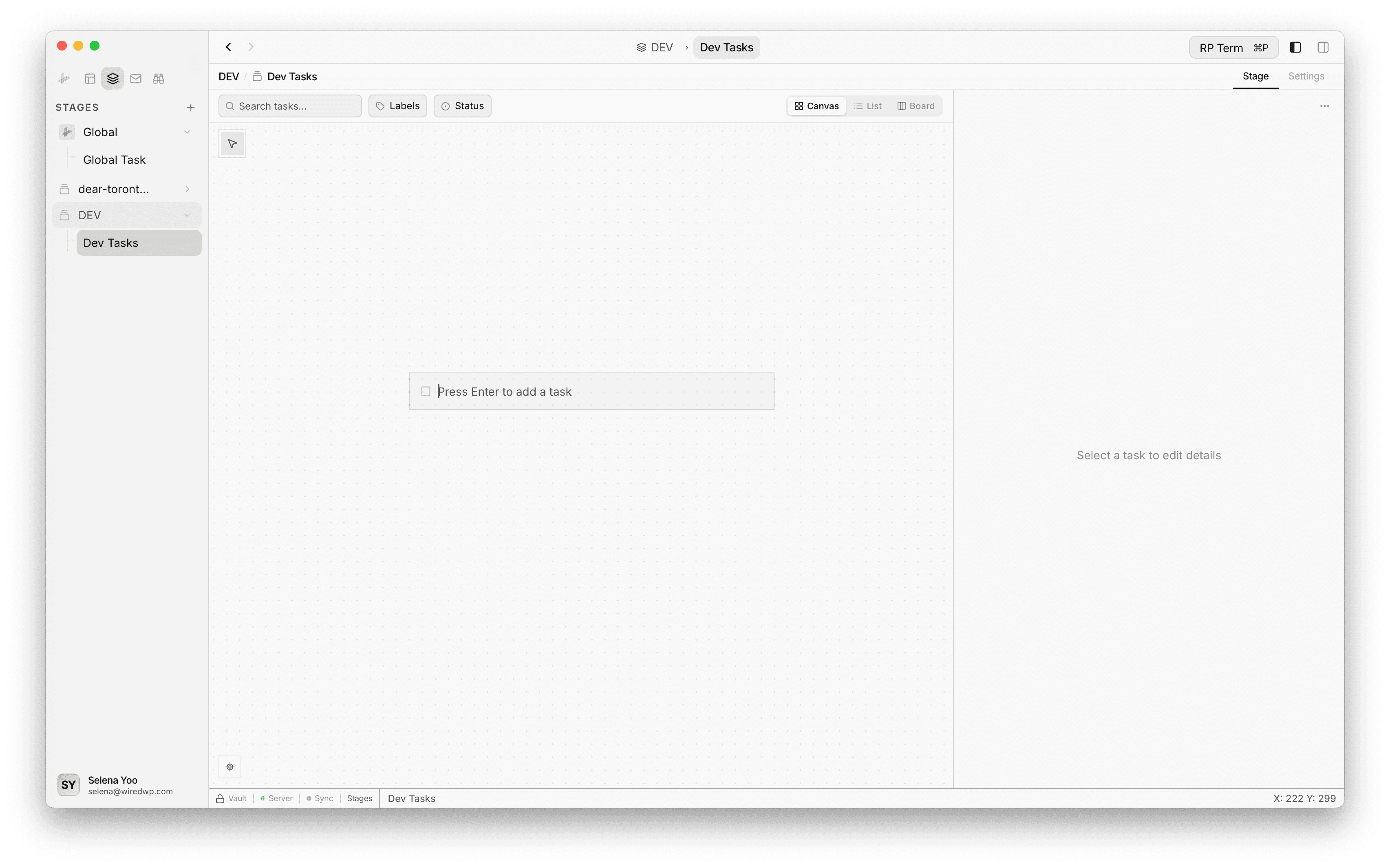
The stage workspace supports multiple presentation modes for the same tasks.
What each task can include
Each task supports:
- Title and rich content
- Status:
backlog,todo,in-progress,review,done - Labels
- Child tasks (nested hierarchy)
- Linked applet resources
- Linked places and tabs
Labels and metadata
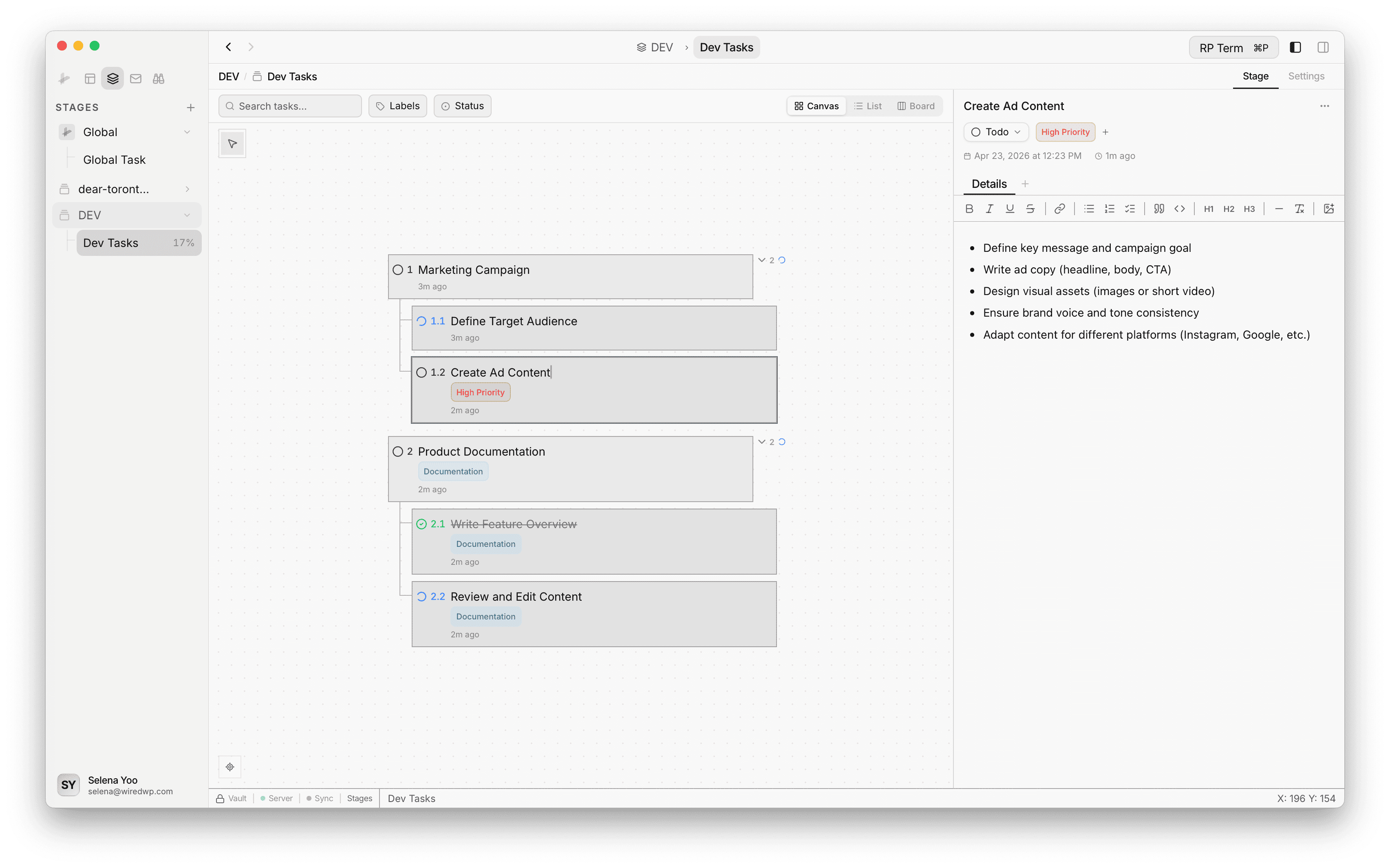
Stage includes project-scoped labels with create, edit, assign, and remove flows. Task rows also expose quick menus for status and metadata updates.
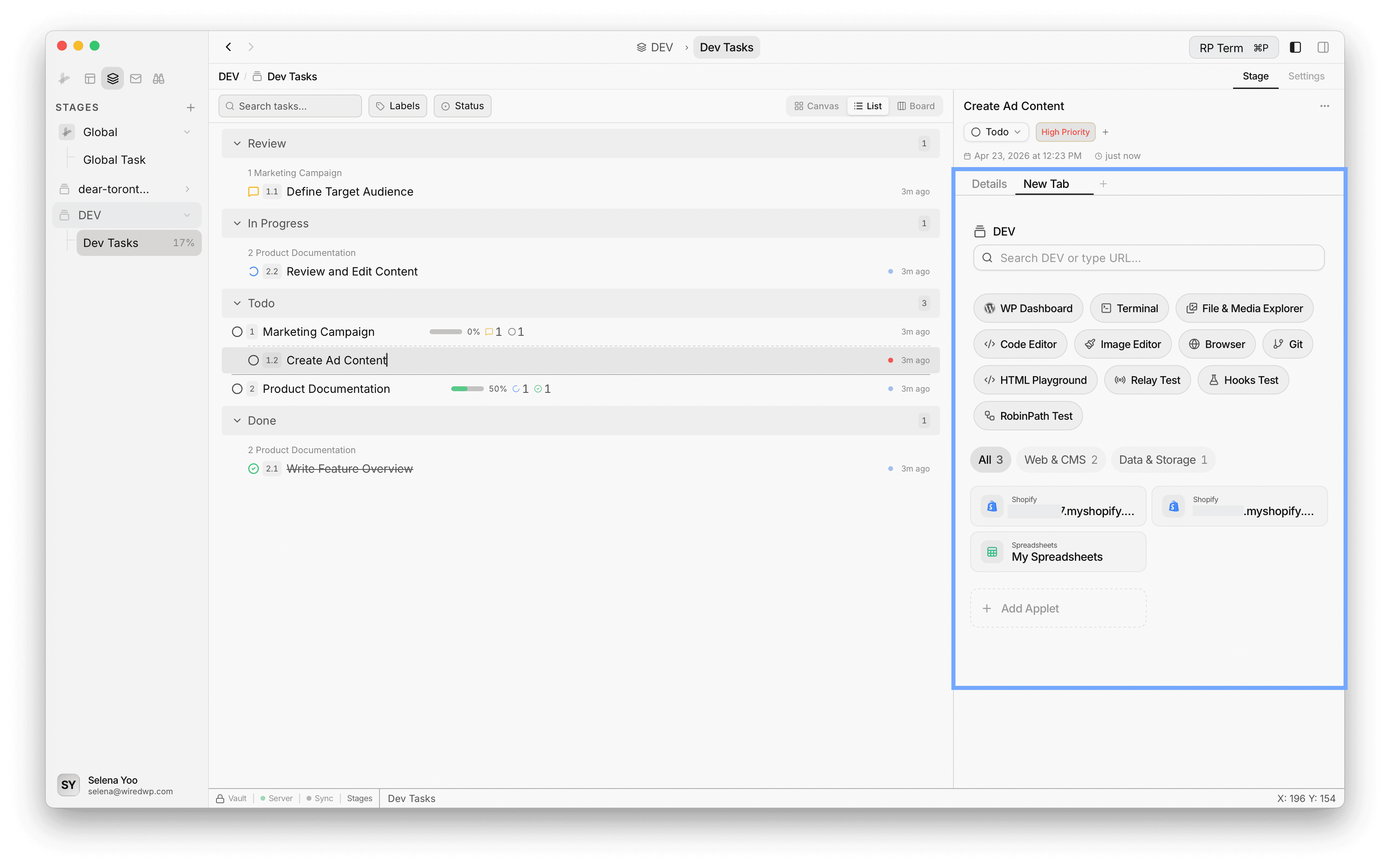
Task detail work context
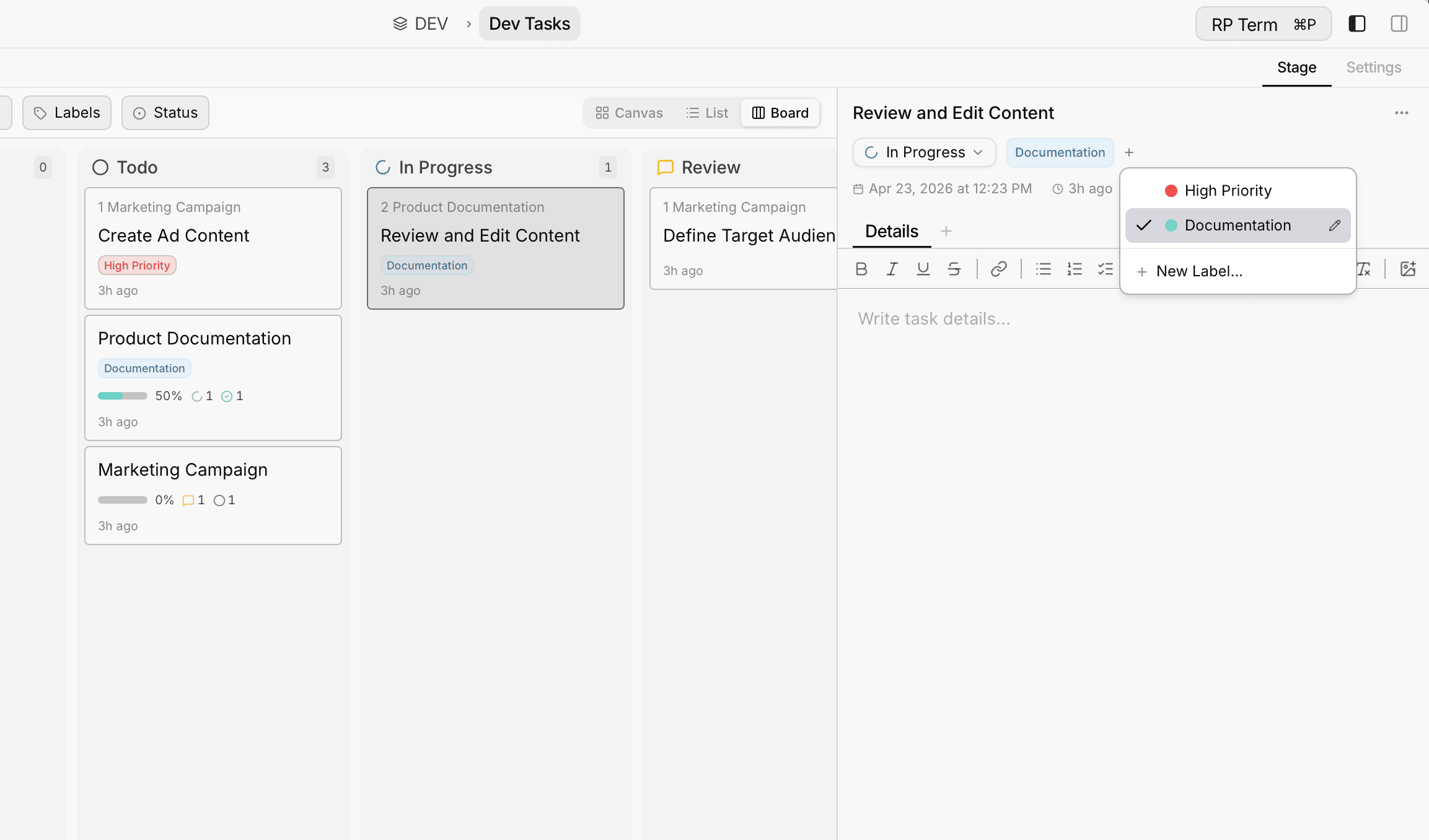
Inside task detail, you can open linked applets and places in new tabs and continue execution without leaving the stage workflow.
This makes a task act like a control center: you track status in Stage while opening the exact resource tabs needed for implementation, debugging, or review.
Views
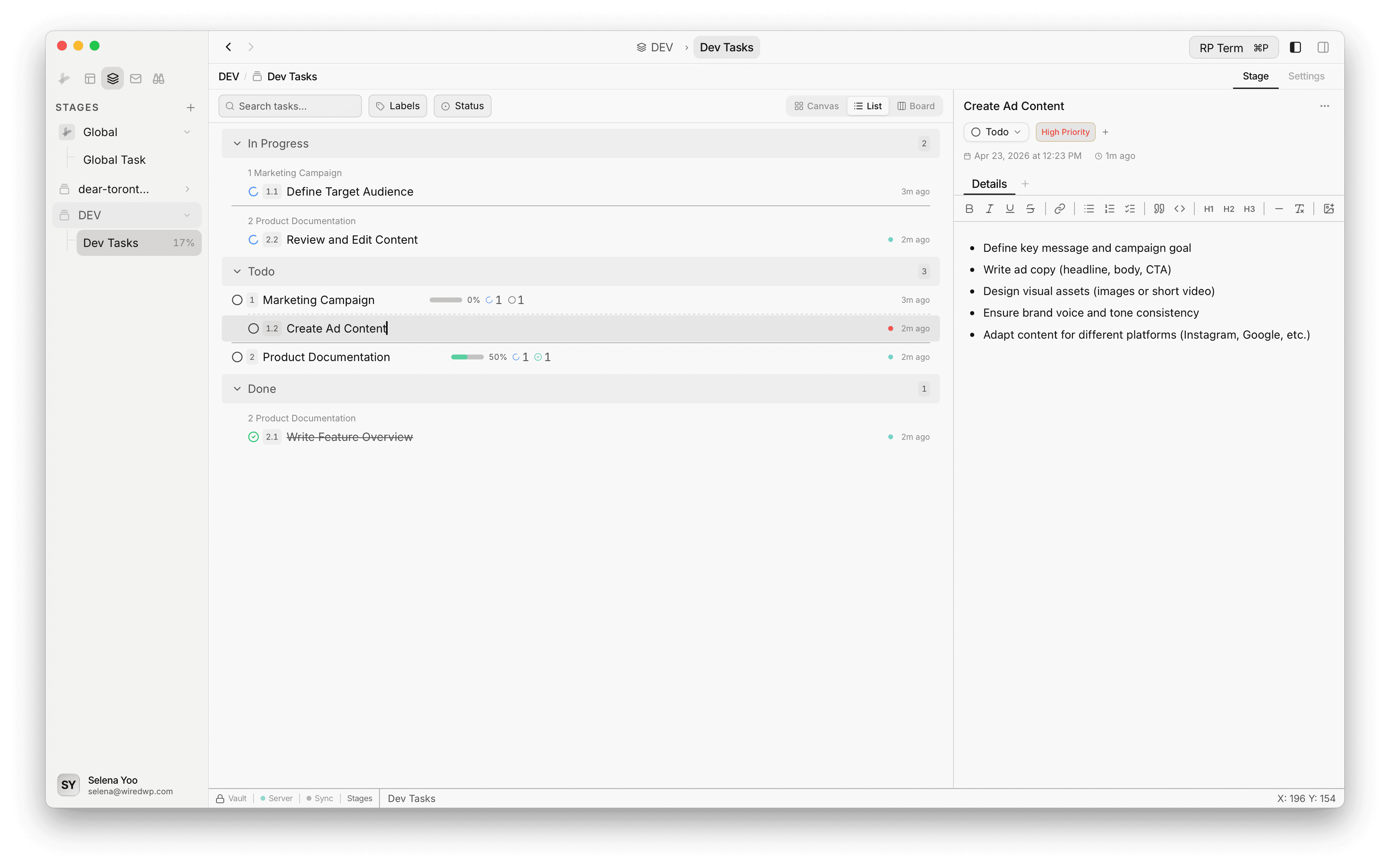
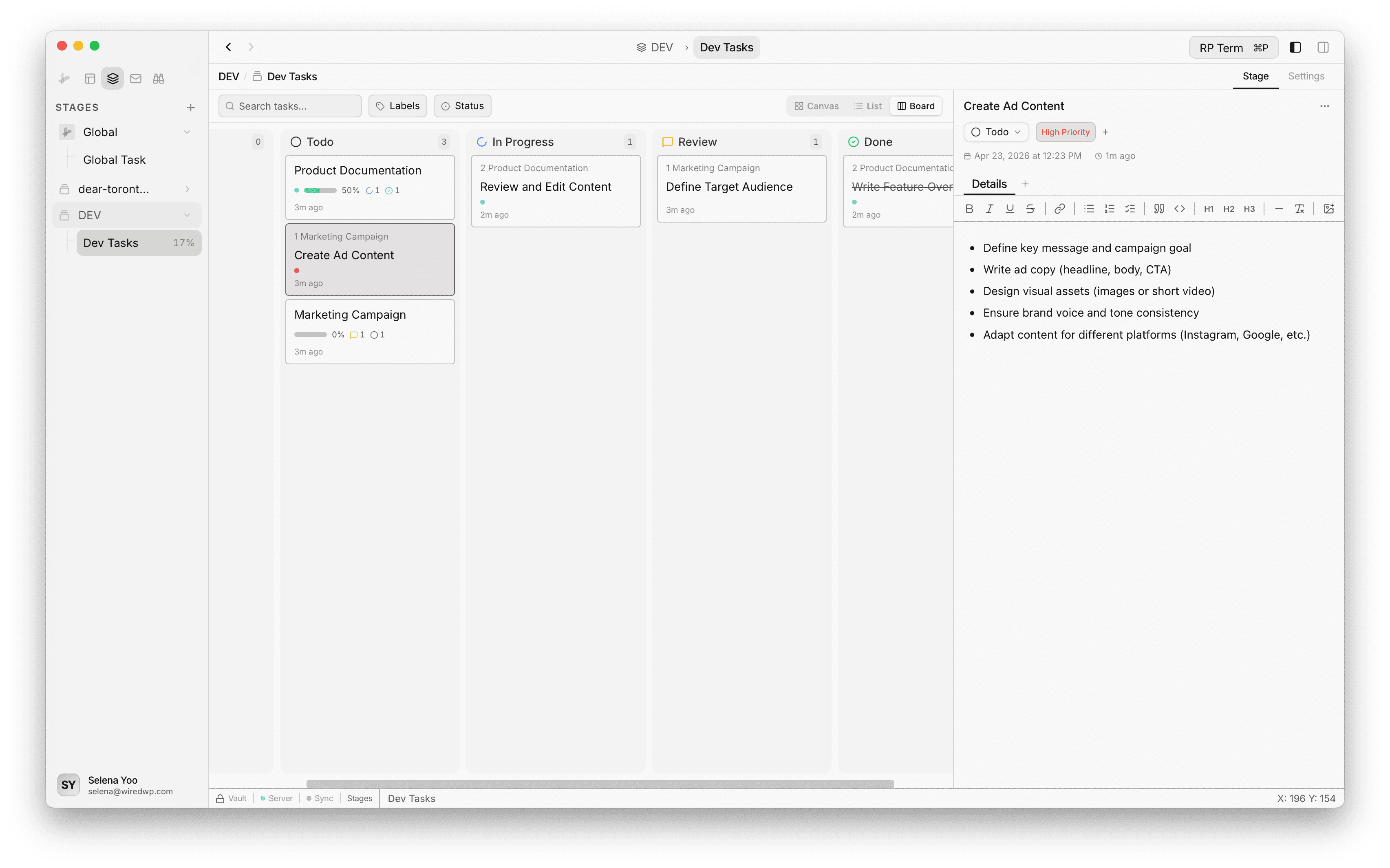
Stage supports multiple task views in the UI, including list and board-style presentations, plus a canvas-oriented mode in the stage experience.
Use the view controls to switch depending on planning vs execution needs.
Widget
Appears when viewing a Stage page.
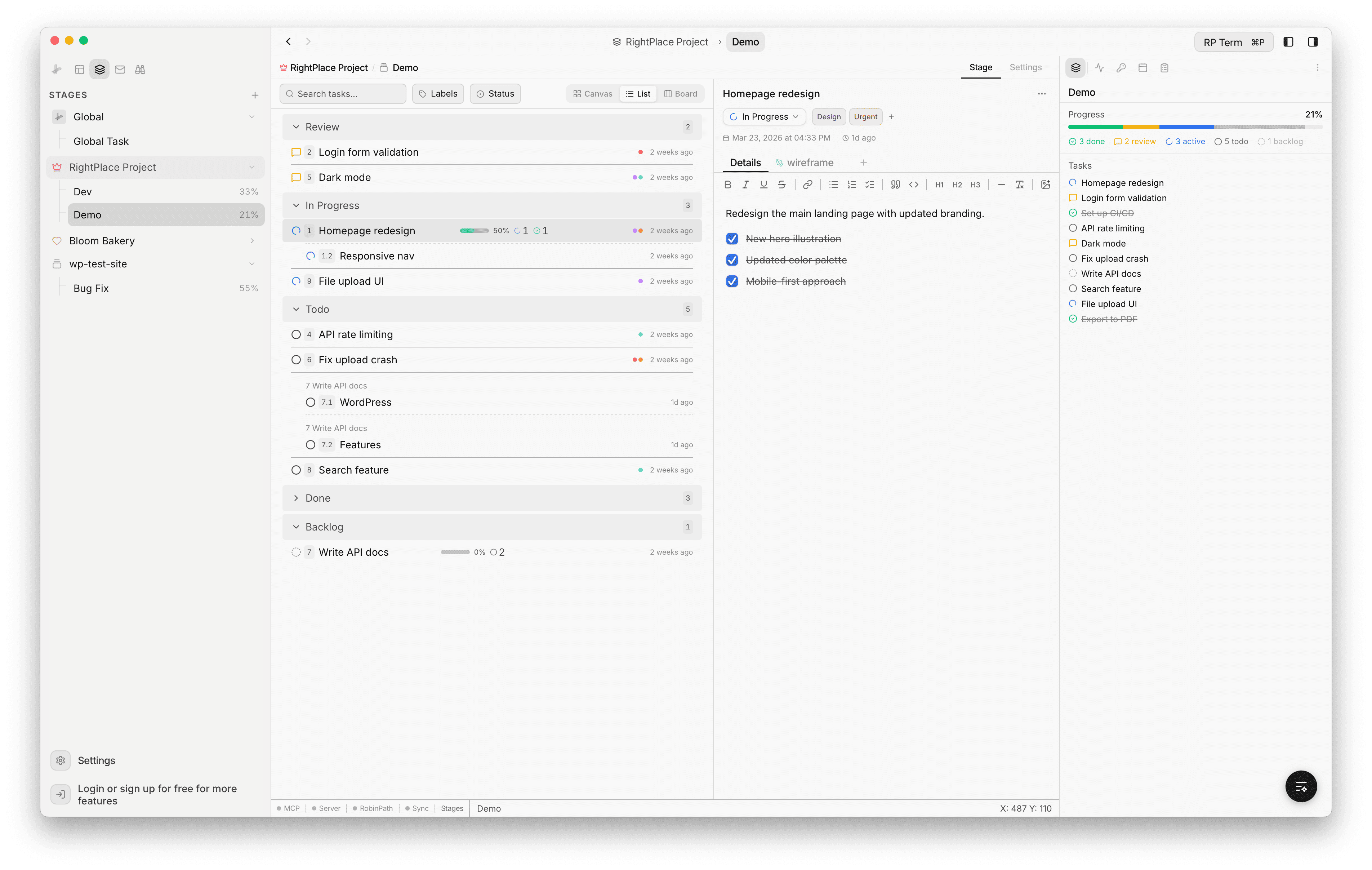
Features:
- Task status groups: visualize tasks grouped by status (Backlog, Todo, In Progress, Review, Done)
- Status icons with animations (spinning icon for In Progress tasks)
- Task count per status group
- Collapsible task list within each group
- Right-click context menu on tasks: edit, change status, add subtask
Agent tools
Every action this applet exposes as a typed, permissioned tool that agents can discover and run over MCP, the same actions your team uses in the UI.