HTML Playground
CodePen-style HTML playground. Build and preview multi-file static sites with live reload.
Features
- Monaco editor with HTML, CSS, and JS tabs
- Live iframe preview with auto-reload
- Multi-file project with file navigator
Build and preview in one place
Prototyping a landing page, testing a CSS animation, or building a quick demo usually means juggling a code editor, a browser, and a file server. For something that should take five minutes, the setup alone eats half the time.
The HTML Playground gives you an editor and a live preview side by side. Write HTML, CSS, and JavaScript, and see the result update instantly. No build tools, no server setup, no context switching.
- Instant preview. Changes appear in the live iframe as you type. No manual refresh needed.
- Multi-file support. Create and organize multiple HTML, CSS, and JS files in a project-style file tree.
- Real editor. Monaco-powered with syntax highlighting, autocomplete, and formatting.
- Zero setup. No bundler, no dev server, no configuration. Just open and start building.
- Save or discard. Use it as a persistent resource tied to your project, or launch a quick throwaway session from the New Tab page.
Add as a Resource
To create a persistent HTML Playground, open Add Resource and choose HTML Playground in the Development category.
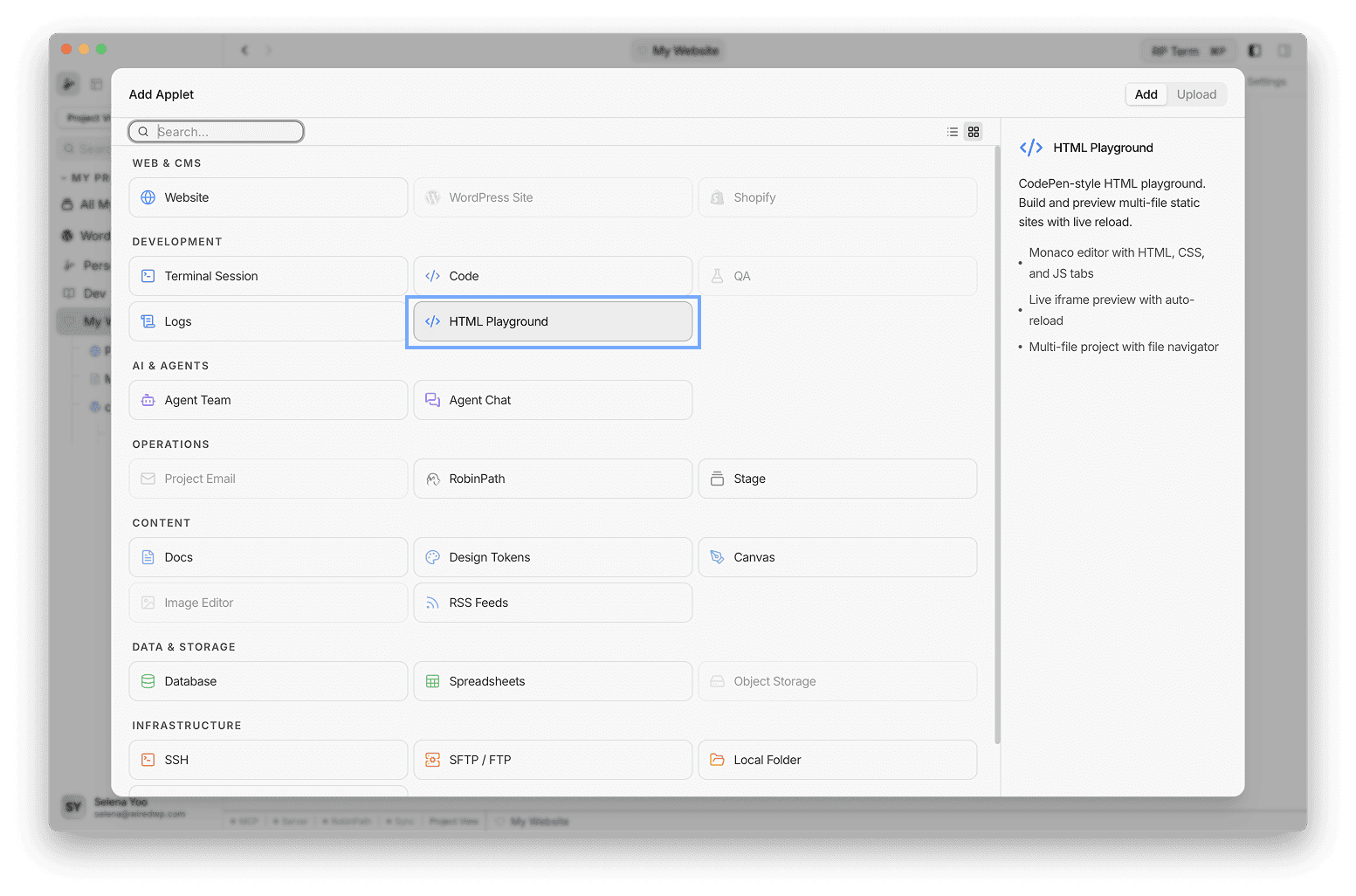
The resource creates a starter folder with:
index.htmlstyle.cssscript.js
This folder is stored under your project and reopens with the same files later.
Open as a Utility Applet
You can also launch HTML Playground as a utility applet from New Tab. In utility mode, RightPlace creates a scratch workspace for that session, still seeded with the same starter files (index.html, style.css, script.js).
Use this mode when you want a quick throwaway prototype without adding a persistent resource.
Tip: HTML Playground can be opened in two ways, depending on whether you want long-term workspace state or a quick temporary sandbox.
- Resource applet: use this when the playground is part of your project’s real workflow. It is added to the Place/Project sidebar, keeps the same folder and files over time, and is easy to reopen for ongoing iteration.
- Tool applet: use this when you want to test an idea quickly without creating a persistent project resource. It launches from New Tab as a scratch session and is best for throwaway experiments.
Layout
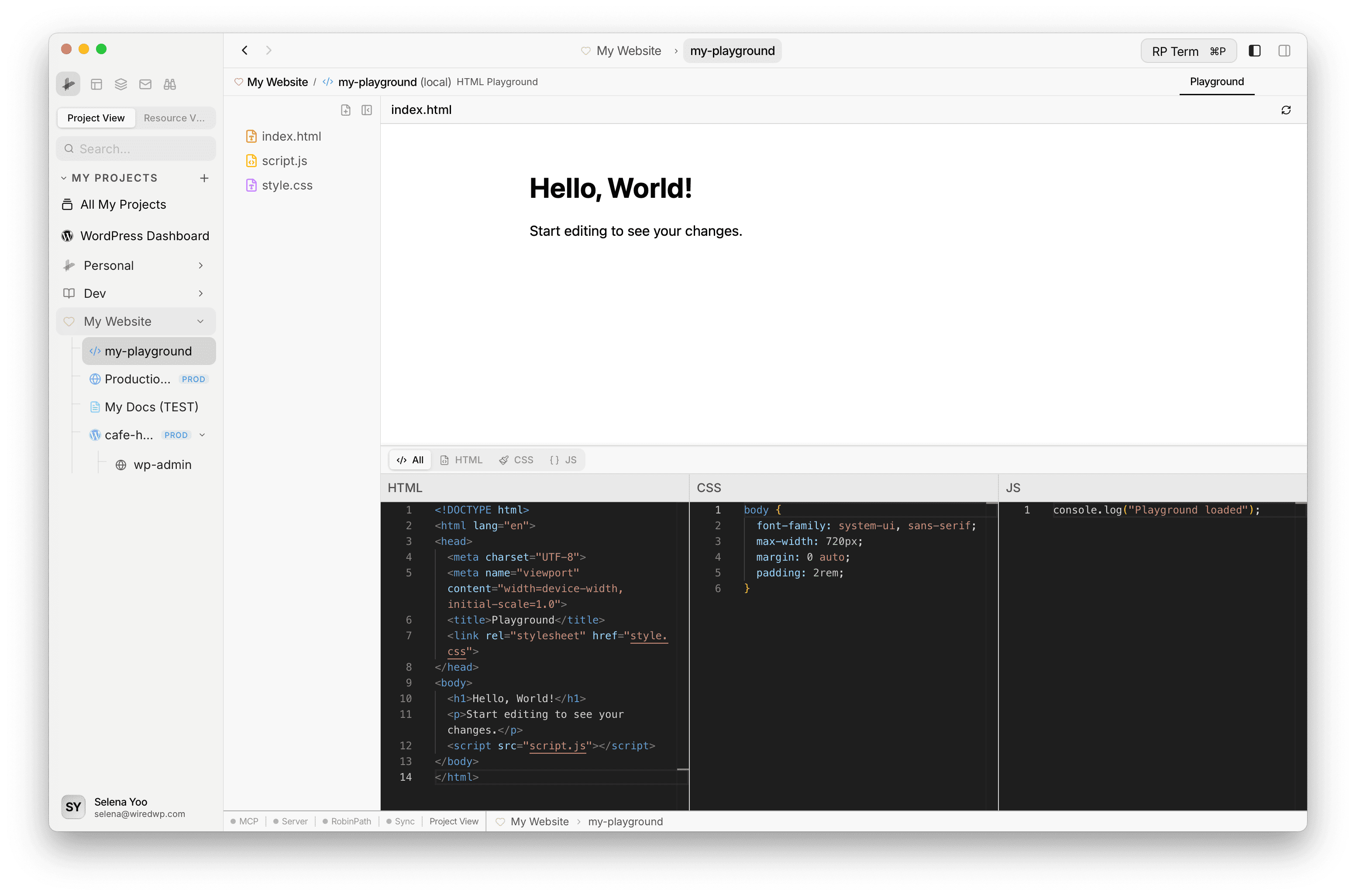
The editor has two main panes:
- Left file navigator: file tree with selection, expand/collapse, resize, and collapse controls
- Main panel: top live preview plus bottom editor area
Live Preview
The top preview pane renders your current HTML file in an iframe. Changes update live as you type.
How it works:
- The HTML file is used as the base document
<link href="*.css">references are inlined from matching files in the playground<script src="*.js"></script>references are inlined from matching files in the playground- Reload button re-renders the iframe immediately
This gives fast feedback while still letting you keep CSS and JS in separate files.
Editor Modes
The bottom editor supports four tabs:
- All: side-by-side columns for HTML, CSS, and JS (when linked files exist)
- HTML: HTML editor only
- CSS: CSS editor only
- JS: JavaScript editor only
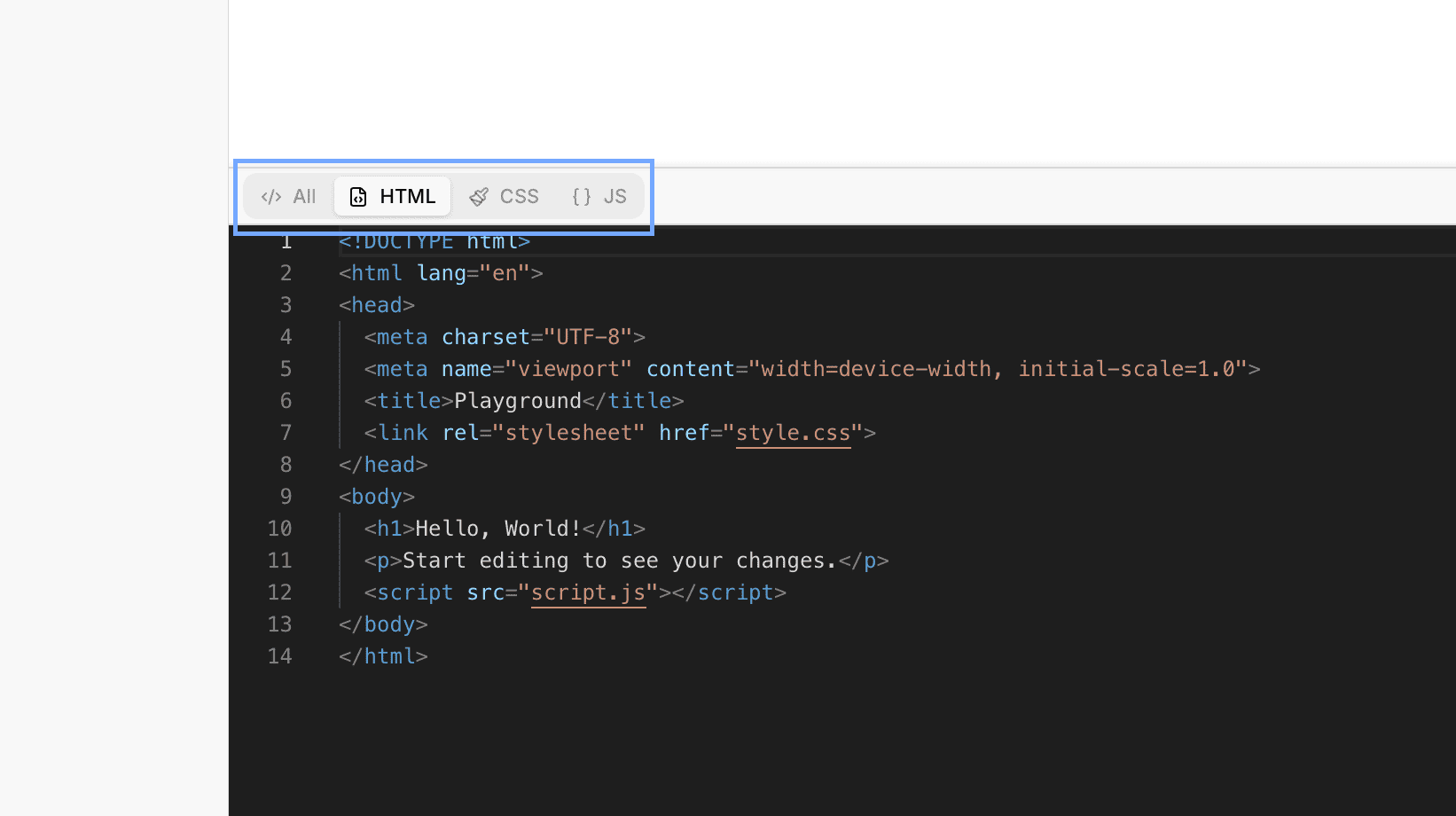
If CSS or JS links are missing from the active HTML file, those tabs show a helpful empty state.
File Management
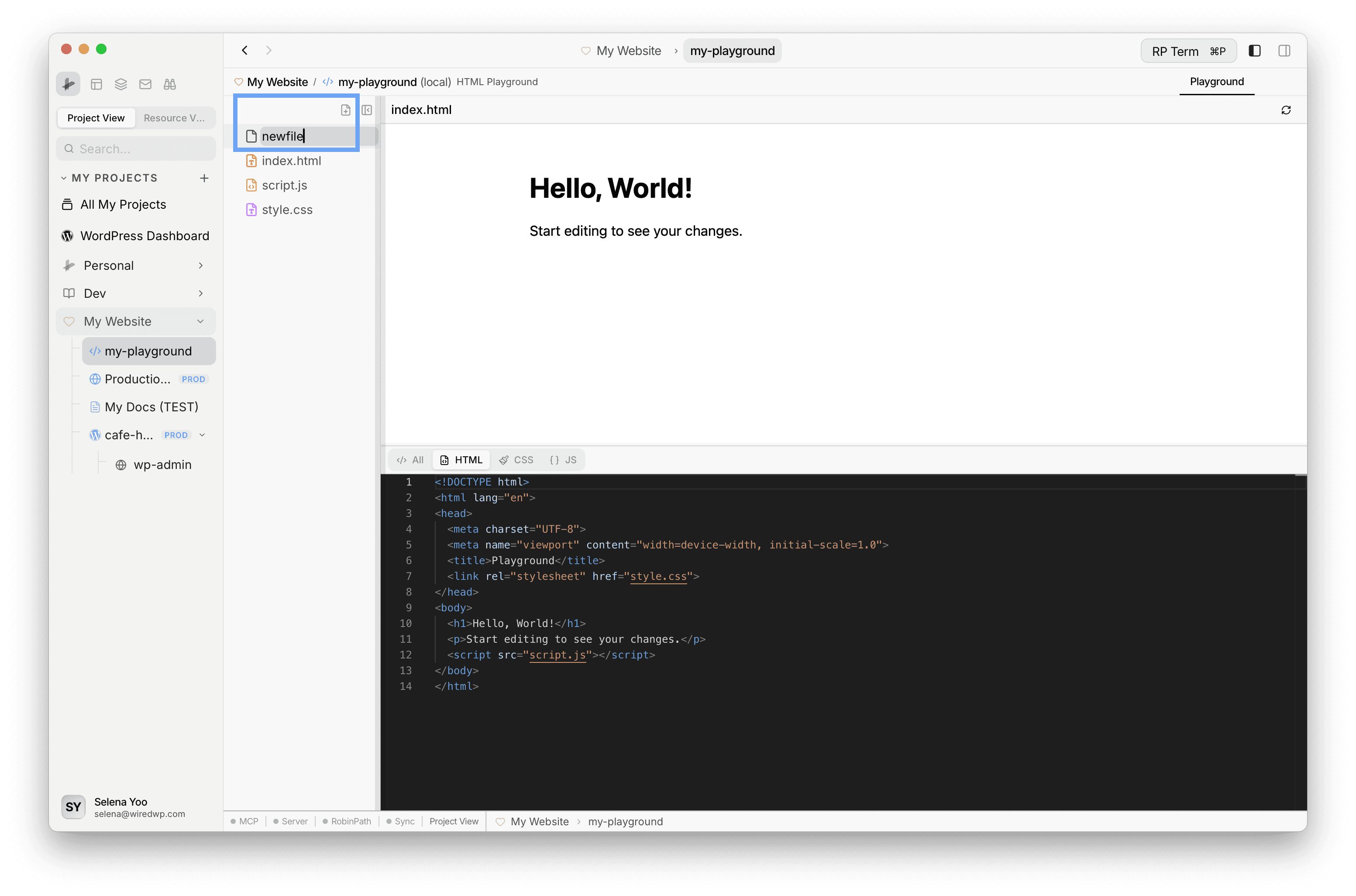
Use the file navigator to manage playground files:
- Create file from the header plus button or empty-space context menu
- Select file to make it active in the editor
- Delete file from context menu (except
index.html, which is protected) - Resize and collapse the sidebar to fit your workflow
Auto Save Behavior
Edits are written to disk automatically with a short debounce. You can type continuously, see instant preview updates, and let persistence happen in the background.
There is no manual save button for normal editing flow.
Best Use Cases
- Rapid UI prototyping with plain HTML/CSS/JS
- Teaching frontend basics with immediate visual feedback
- Building mini static demos to share inside a project
- Testing isolated DOM/CSS behavior before moving into larger apps
Widget
Appears when an HTML Playground tab is active. Reserved for future playground-specific tools.
Agent tools
Every action this applet exposes as a typed, permissioned tool that agents can discover and run over MCP, the same actions your team uses in the UI.